






 İngilizce
 Çince (Çin)
 İspanyol
 Almanca
 Fransızca
 İtalyan
 Japonca
 Koreli
 Bulgarca
 Yunan
 Endonezya dili
 Çince (Hong Kong)
 Rusça
 Danimarka
 Fince
 Macarca
 Flemenkçe
 Portekizce
 İsveççe
 Romen
 Slovak
 Norveççe
 Hırvat
 Çek
 Bengalce
 Lehçe
 Tay dili
 Ukrayna
 Vietnam













Ürün Yazılımı Güncellemeleri
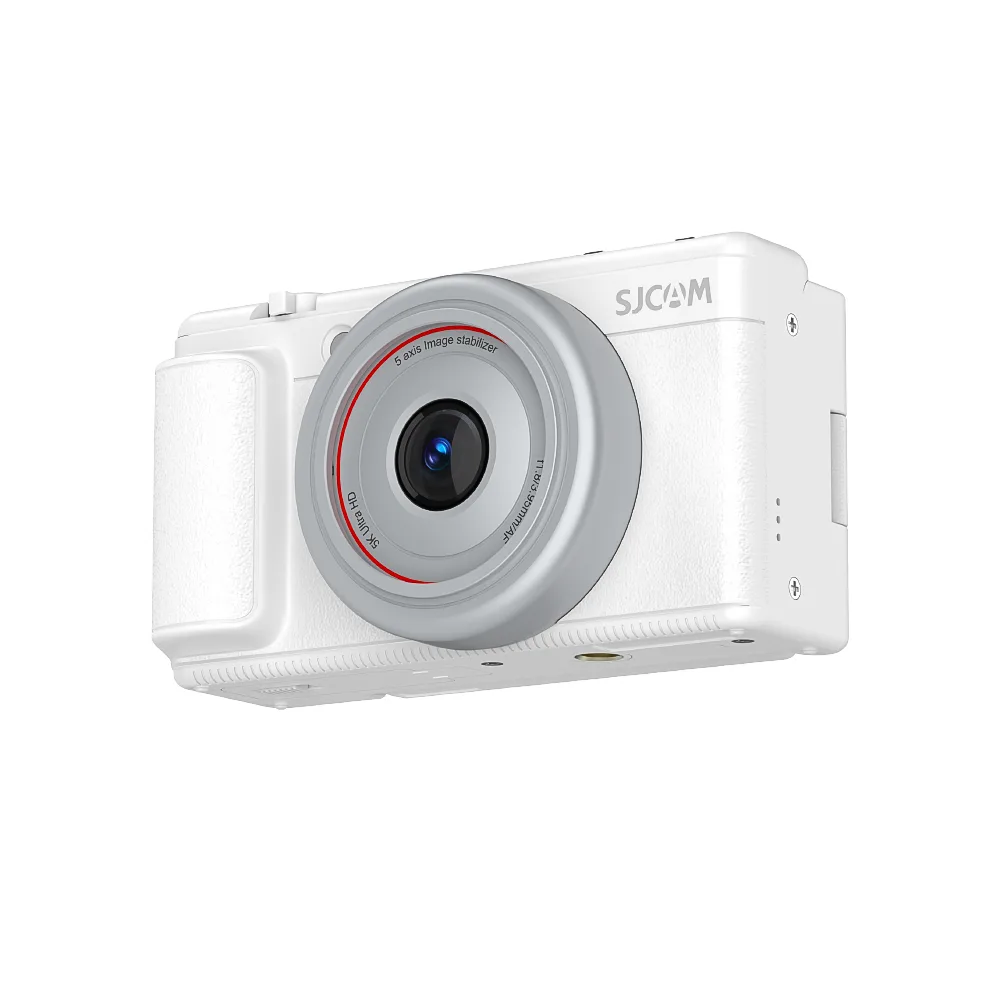
The C400 Pro supports online firmware upgrades via the SJCAM X App.
Important Notes Before Upgrading
- Ensure sufficient battery power: Do not turn off the device or remove the memory card during the upgrade process.
- Insert a memory card: Make sure a functional, recognizable microSD card is inserted.
- Network and backup: Ensure a stable internet connection on your phone; it is recommended to back up any important files beforehand.
Follow the steps below to perform the upgrade:
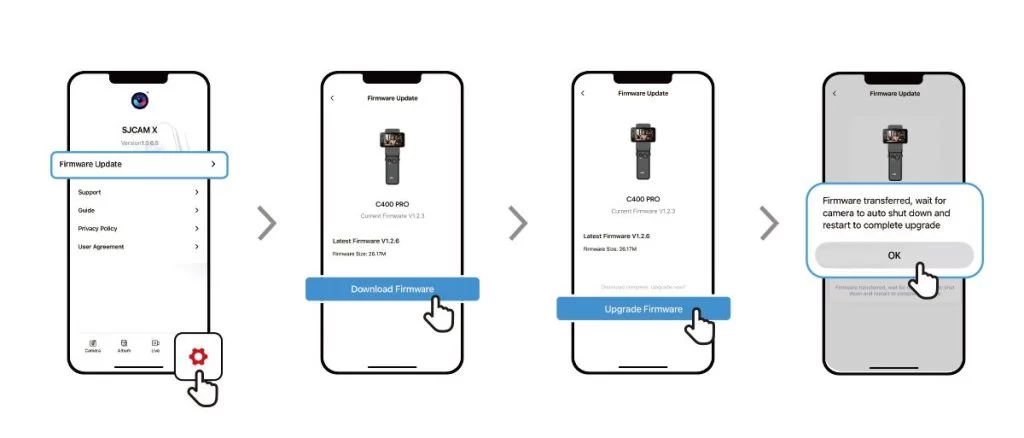
- Check for updates: Connect your C400 Pro to the SJCAM X App. Open the app, then navigate to "Settings" > "Firmware Upgrade." If a new version is detected, tap "Download Latest Firmware."
- Transfer the file: Once the download is complete, tap "Upgrade Firmware" to transfer the file to the camera. During the transfer, keep the app running in the foreground, ensure the phone and camera remain close to each other, and do not move either device.
- Automatic upgrade and restart: After the file transfer is complete, the camera will automatically begin the upgrade process and then restart. Once it has restarted, return to the settings page to verify that the version number has been updated; this confirms that the upgrade was successful.
Troubleshooting Common Upgrade Issues
Firmware download failure: Please check that your mobile data or Wi-Fi connection is stable. Once the connection is restored, try downloading the firmware again.
Firmware transfer failure: Check the camera’s battery level and the status of the memory card. Disconnect from the camera’s Wi-Fi, reconnect, and then try again.
Upgrade stuck or unresponsive for an extended period: Do not repeatedly force the camera to power off or on. Observe the status of the camera’s indicator lights, note your current firmware version and phone model, and contact official SJCAM customer support for assistance.
Bu bilgi yardımcı oldu mu?
Geri bildiriminiz için teşekkürler!