





 Английский
 Китайский (Китай)
 испанский
 Немецкий
 Французский
 итальянский
 Японский
 Корейский
 болгарский
 Греческий
 индонезийский
 Китайский (Гонконг)
 датский
 финский
 Венгерский
 турецкий
 Голландский
 португальский
 Шведский
 румынский
 словацкий
 Норвежский
 хорватский
 Чешский
 Бенгальский
 Польский
 тайский
 украинец
 вьетнамский
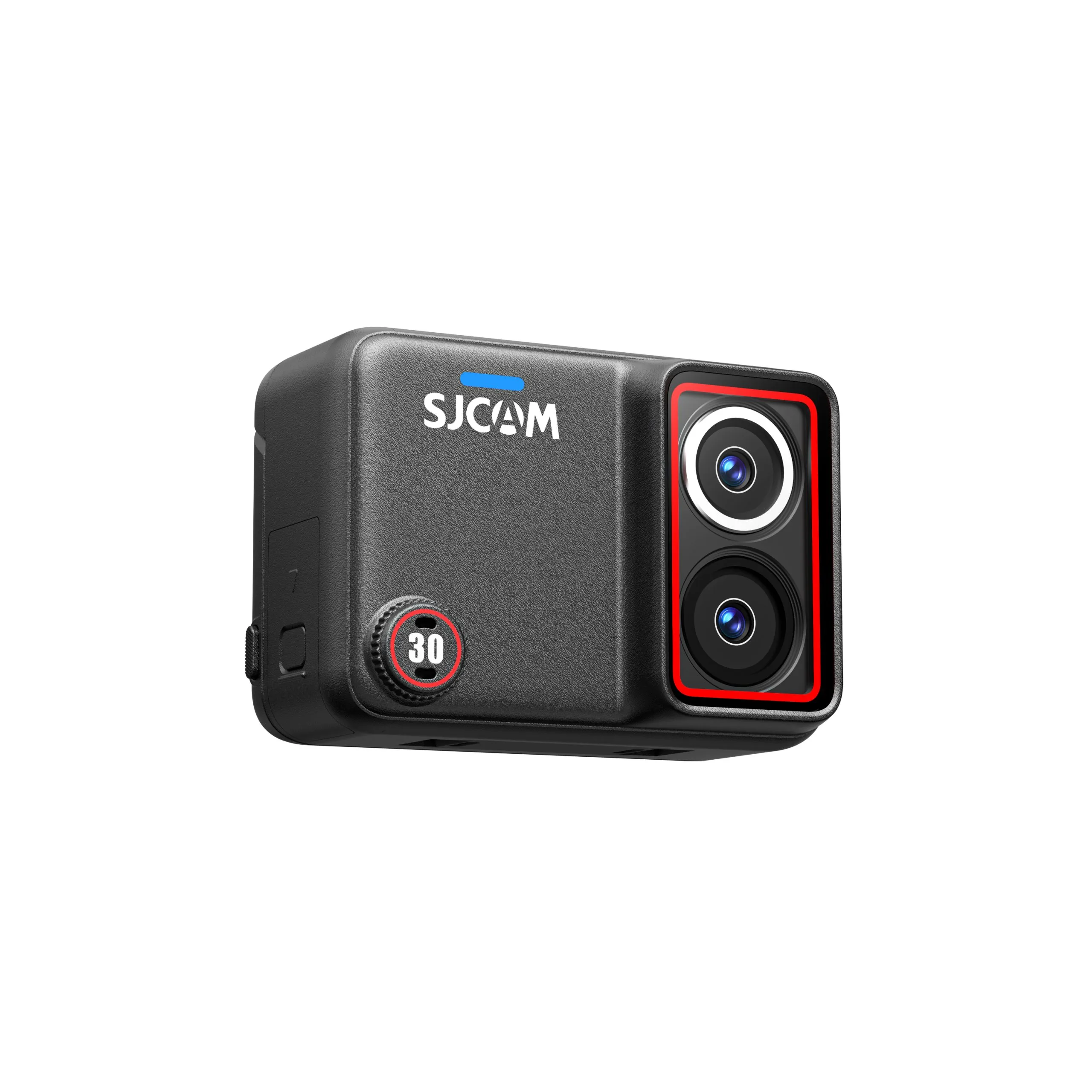
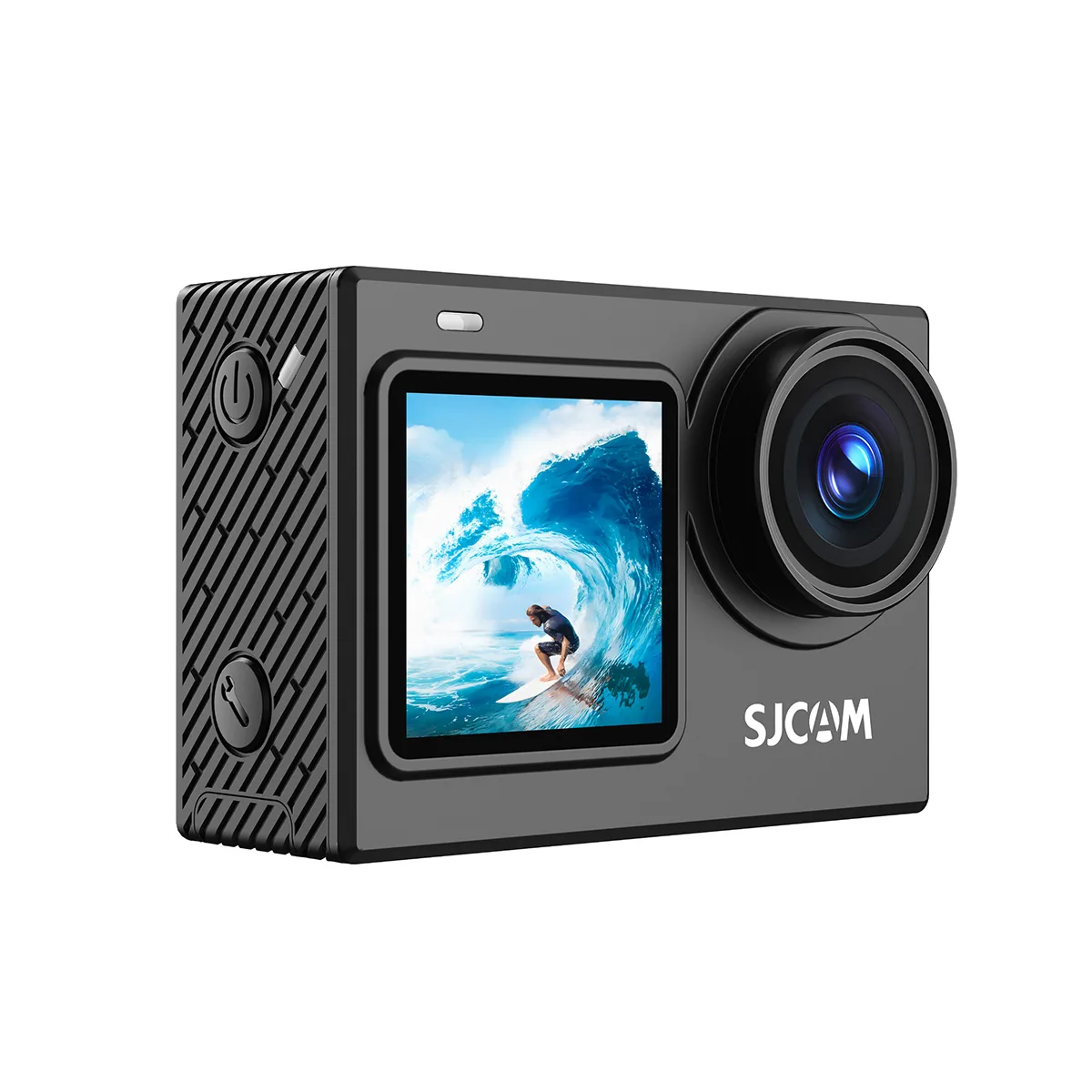
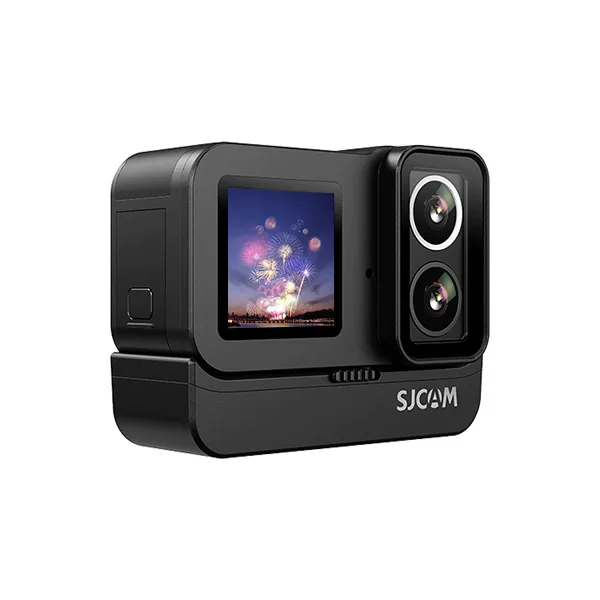
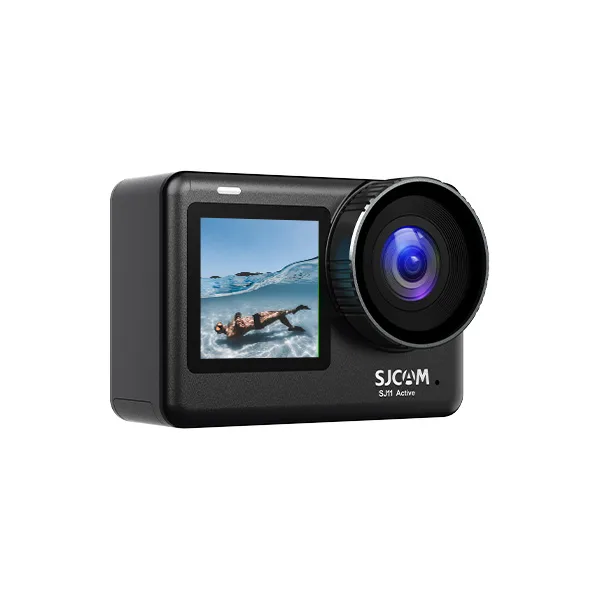
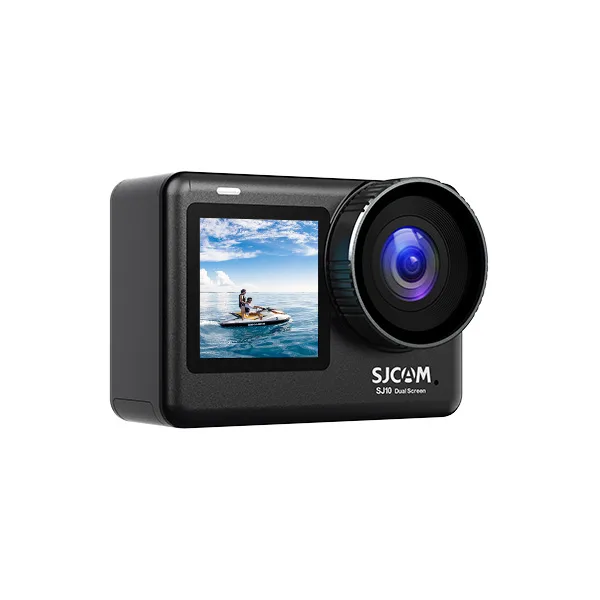
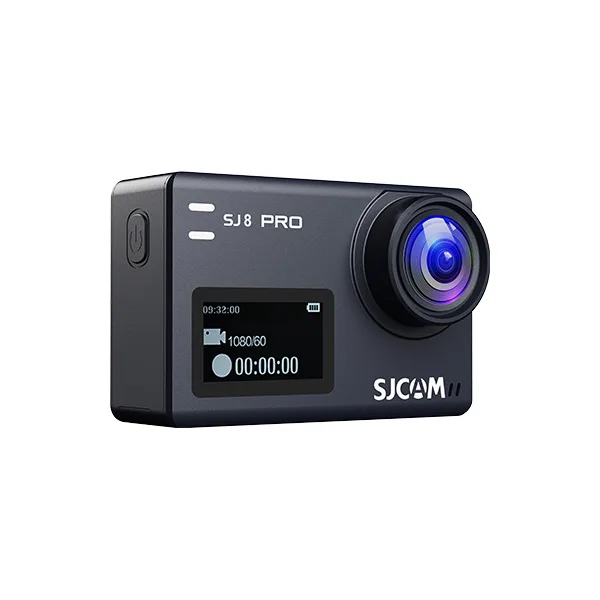
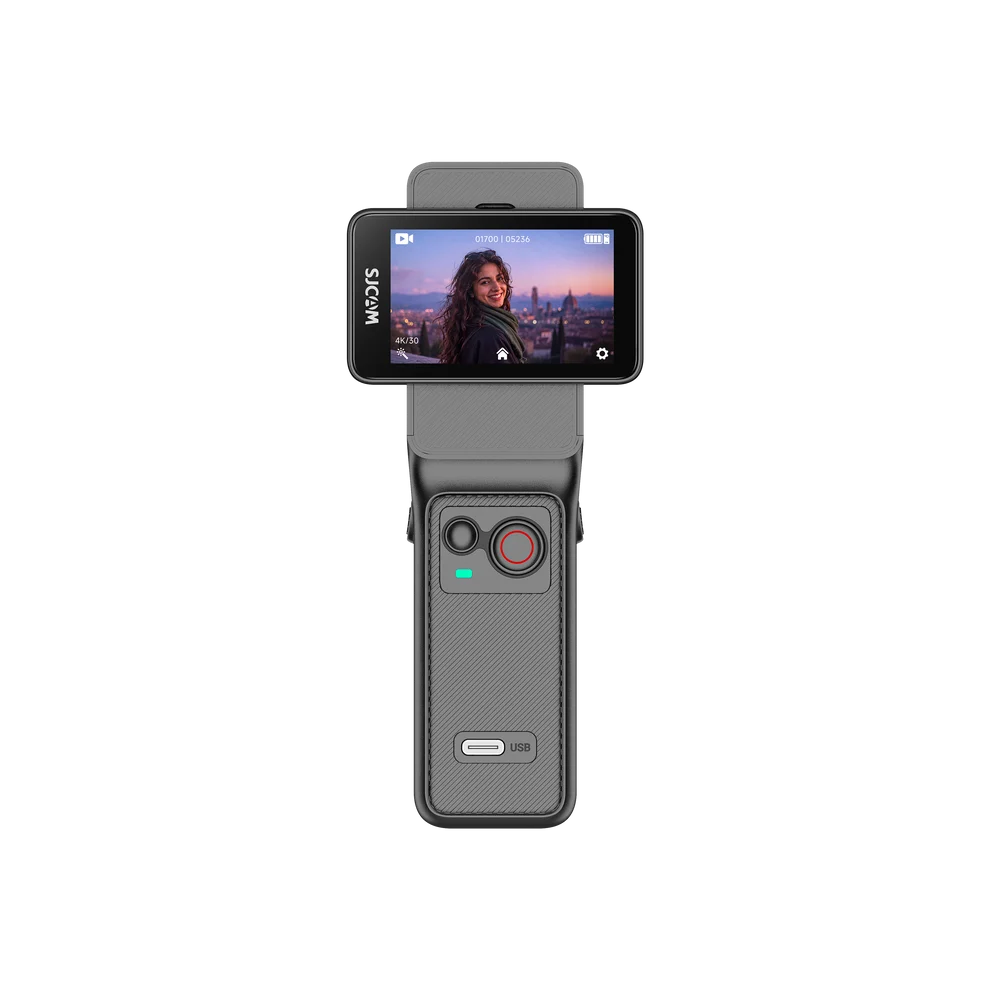
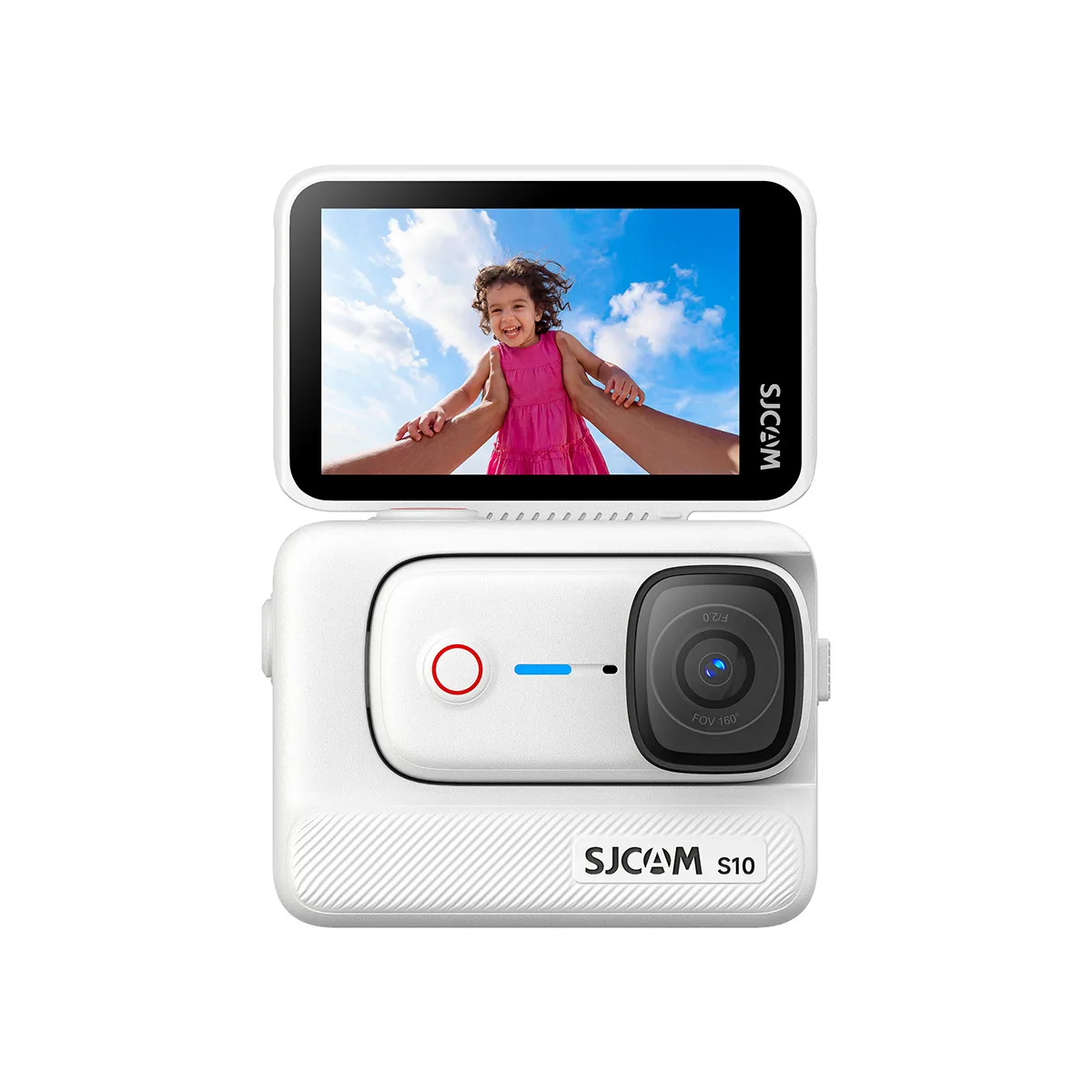
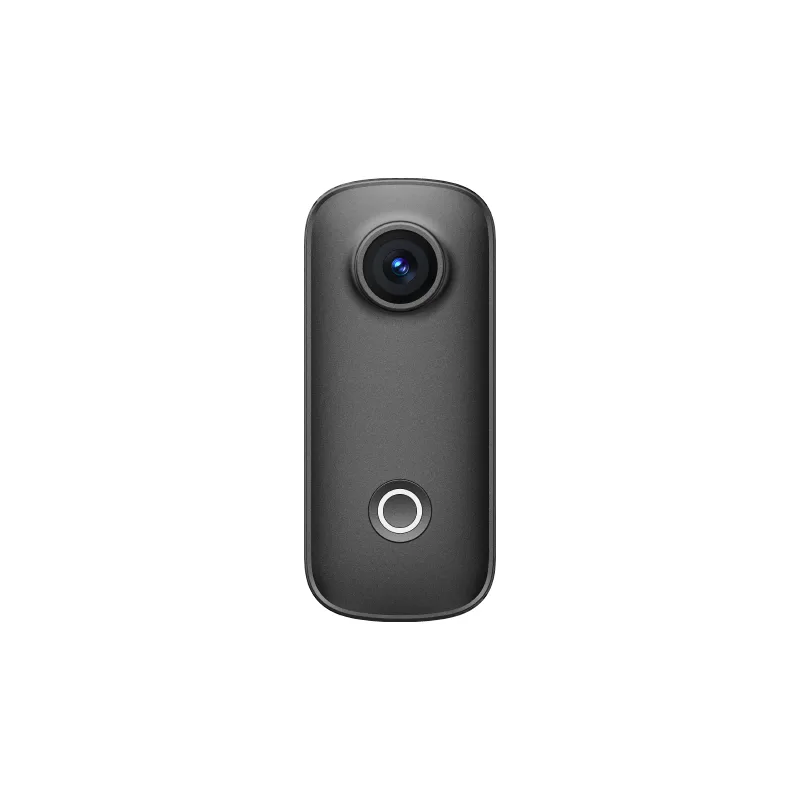
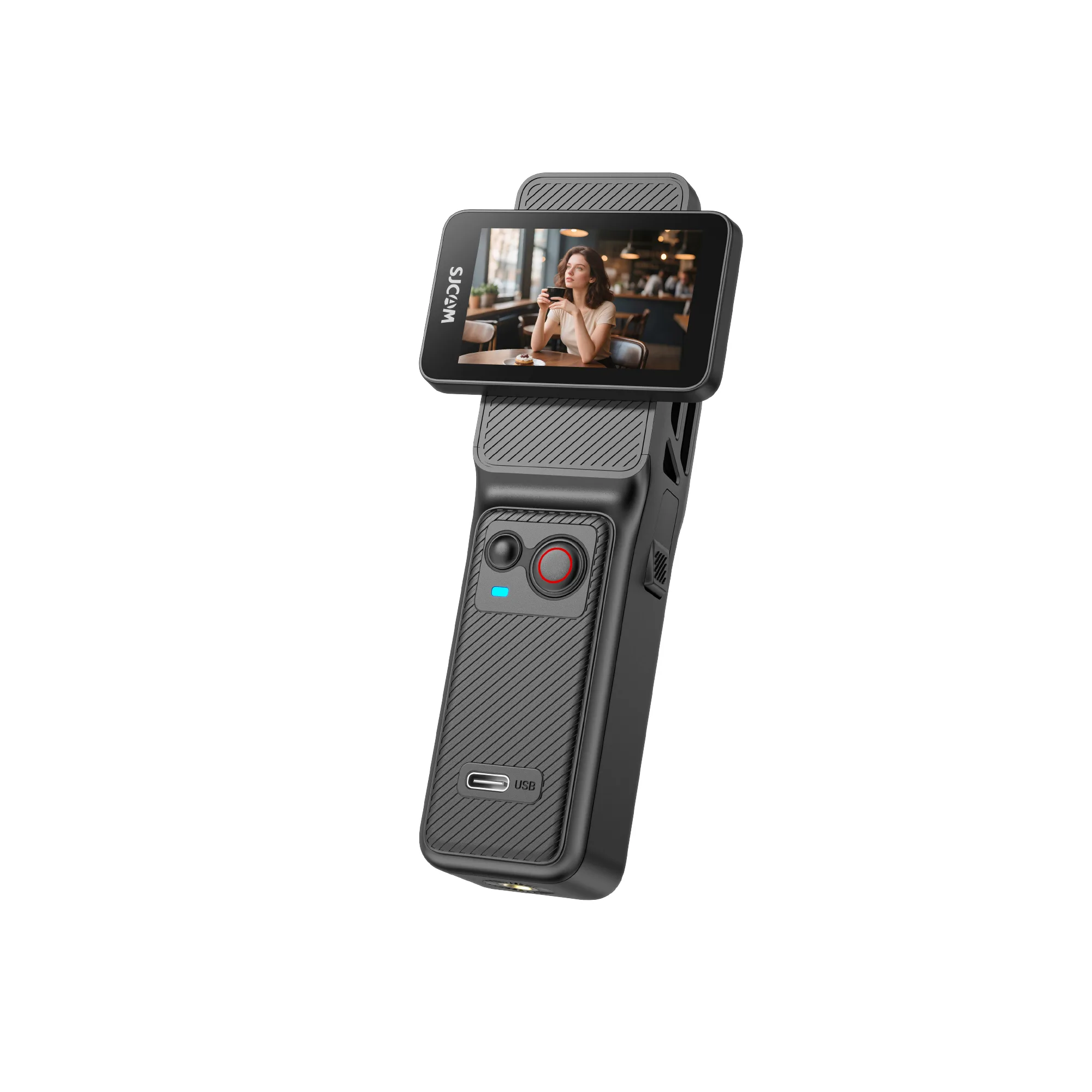
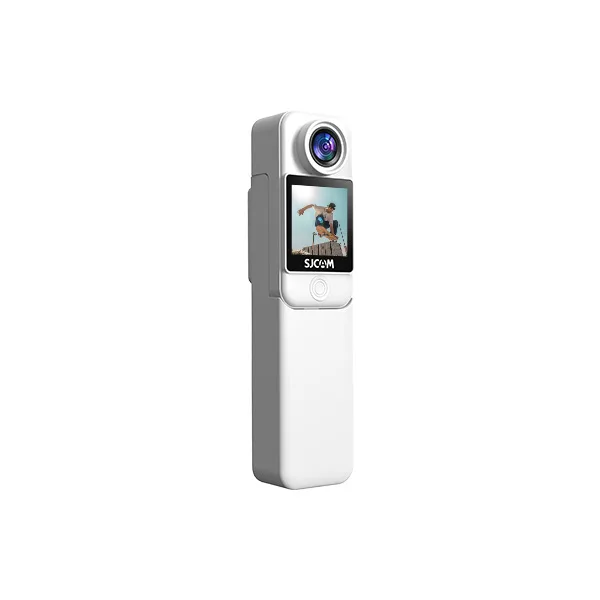
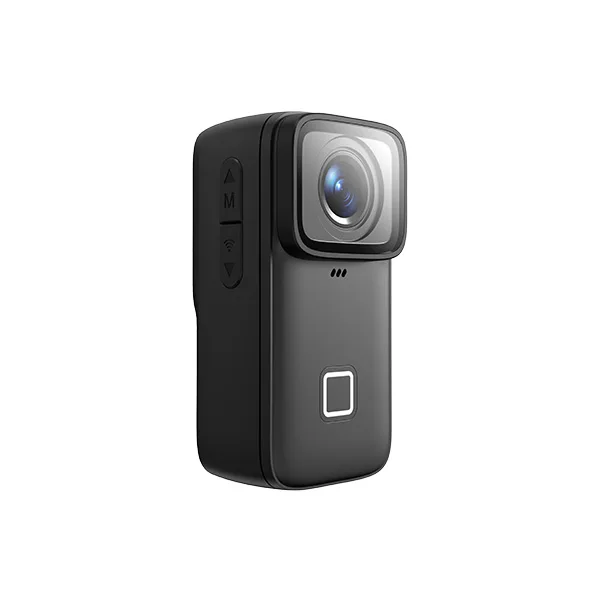
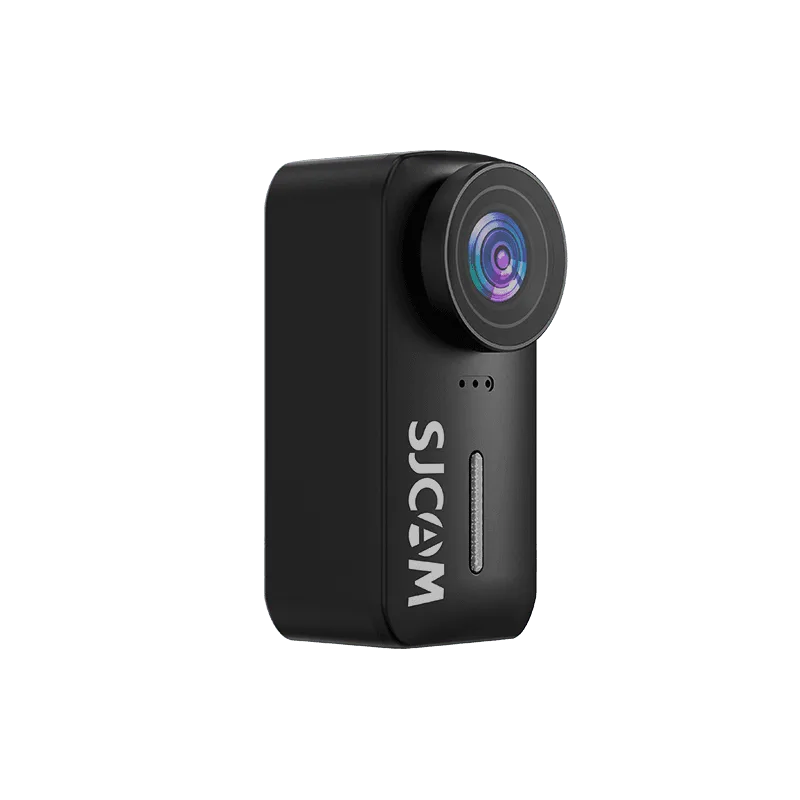
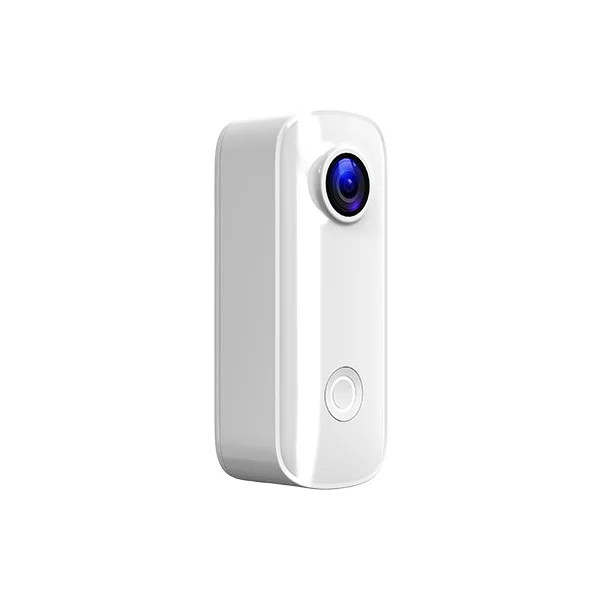
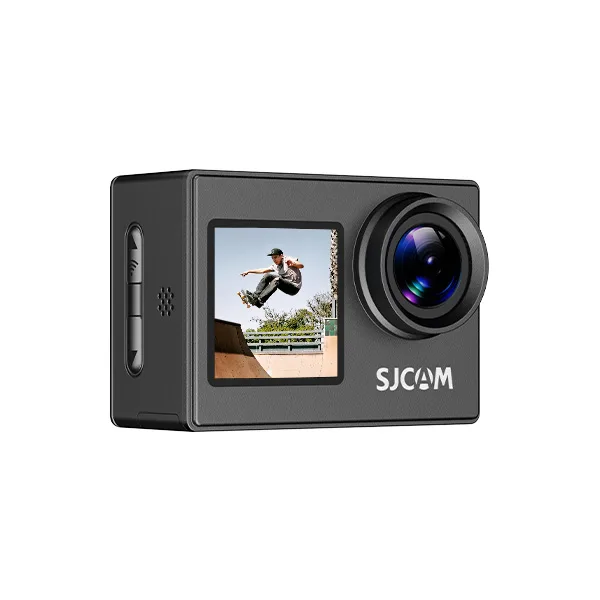
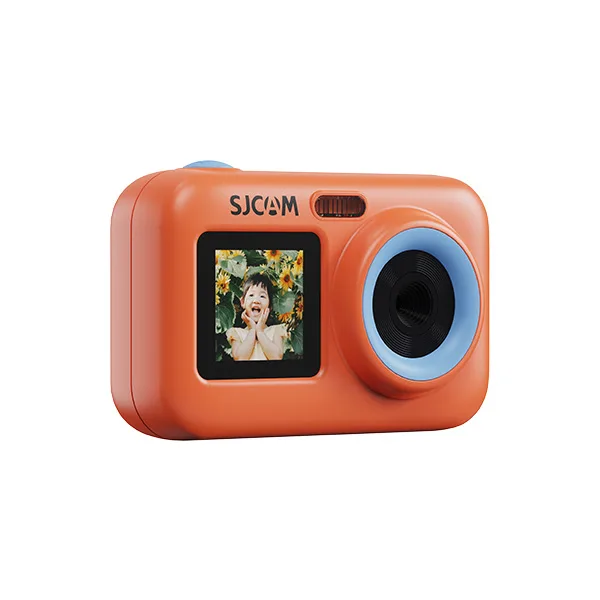
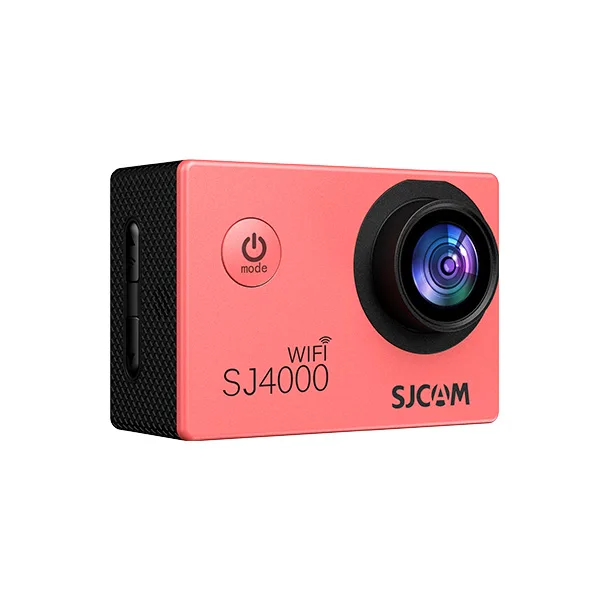
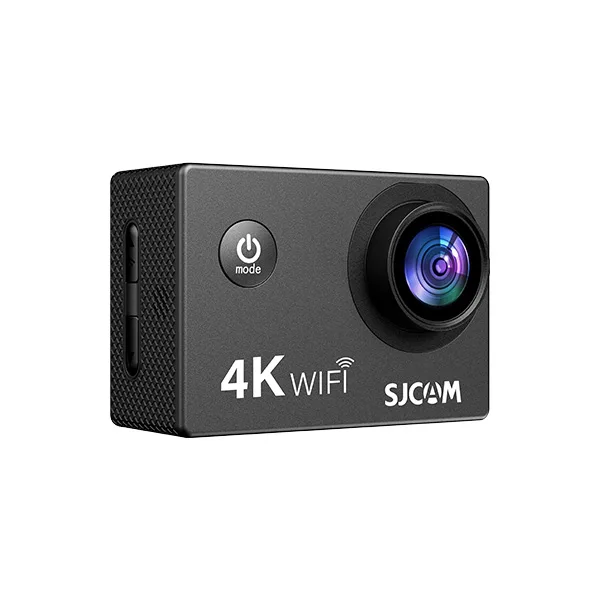
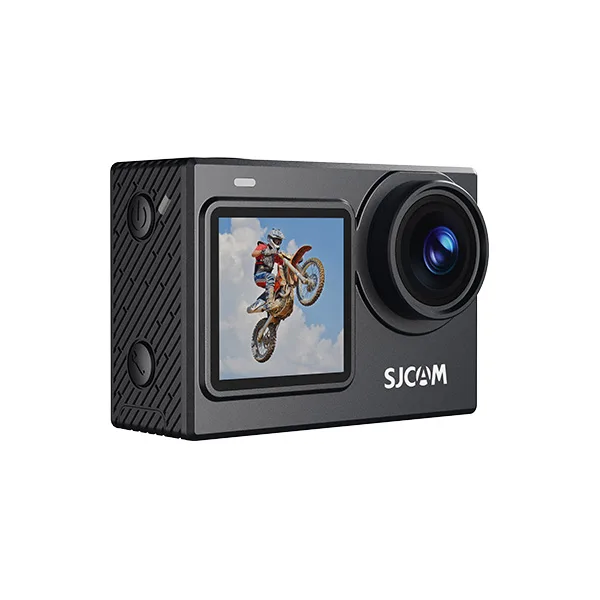








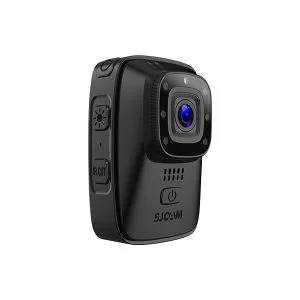
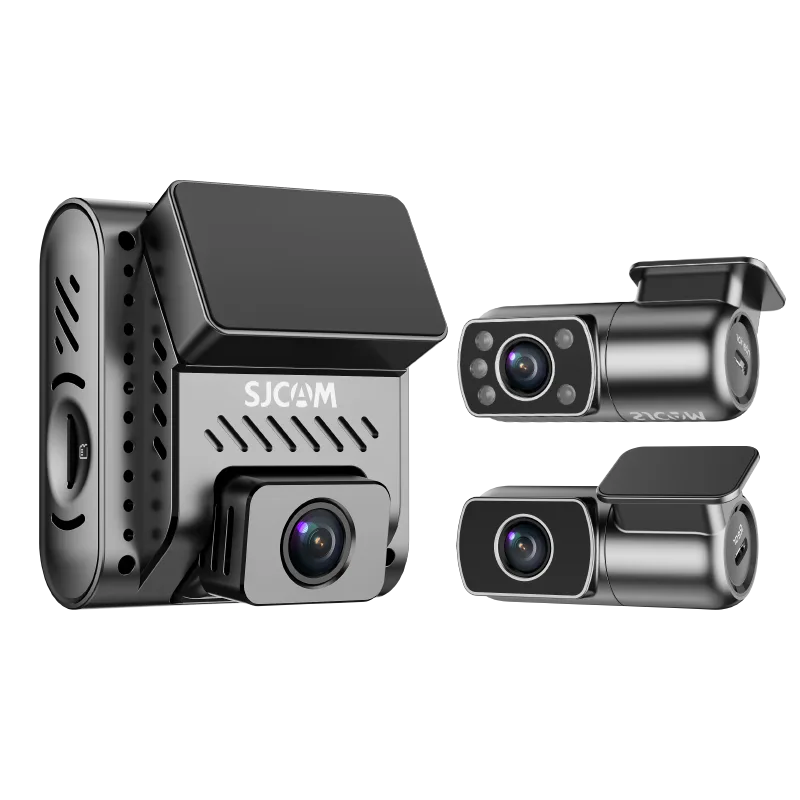

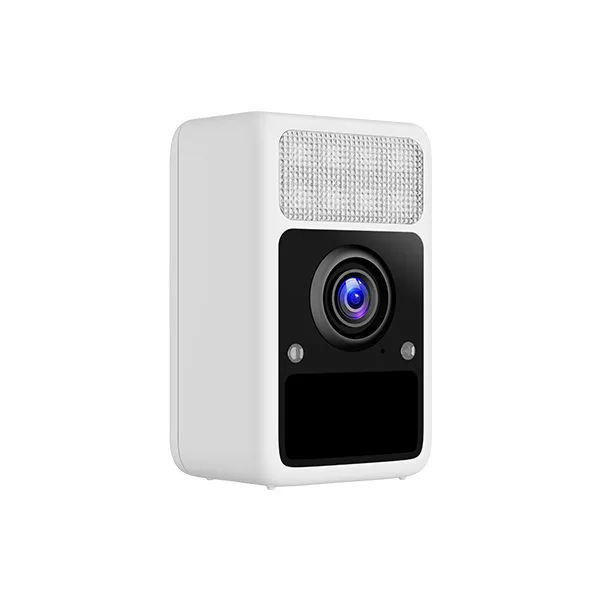
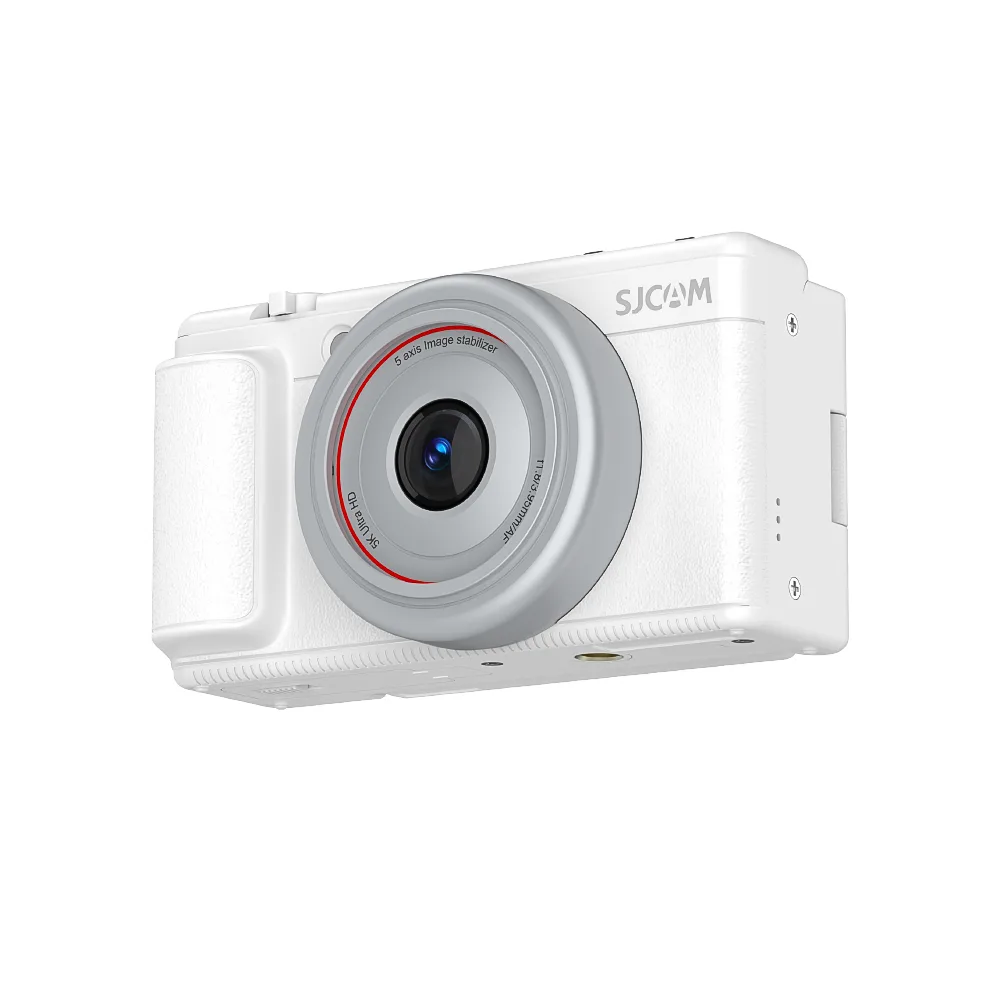


Загрузка и подключение приложения
Download the SJCAM X App
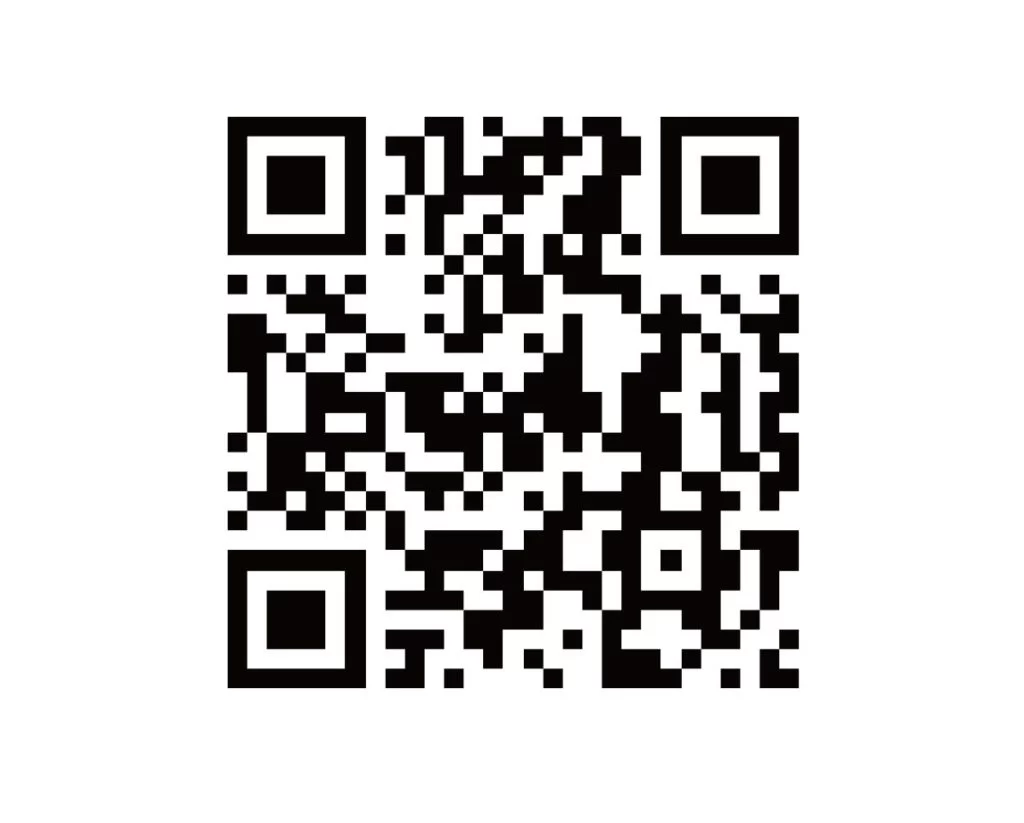
Before connecting, please download the SJCAM X App to your phone. You can do this by scanning the QR code below or by searching for "SJCAM X" in your app store.
Connecting to the App
- Turn on your camera and enable Wi-Fi and Bluetooth on your phone.
- Open the SJCAM X App and tap "Bluetooth Connection."
- Once the app detects your camera, tap "Connect to Wi-Fi" or "Join Network" in the pop-up window on your phone to access the control interface.
If the camera fails to connect to the app, please follow these troubleshooting steps:
- Check the Wi-Fi connection status: Ensure that your phone is successfully connected to the camera's Wi-Fi network via your phone's settings.
- Disable mobile data: It is recommended to turn off your phone's cellular data during the connection process to prevent the system from automatically switching networks, which could interrupt the connection.
- Check Wi-Fi frequency band compatibility: If your phone does not support 5GHz Wi-Fi, it may fail to detect or connect to the camera. We recommend using a phone that supports 5GHz Wi-Fi or switching the camera's Wi-Fi frequency band to 2.4GHz in the camera settings and trying again.
- Keep the camera close to your phone during the connection process.
Была ли эта информация полезна?
Спасибо за ваш отзыв!