




 Englisch
 Chinesisch (China)
 Spanisch
 Französisch
 Italienisch
 japanisch
 Koreanisch
 bulgarisch
 griechisch
 Indonesisch
 Chinesisch (Hongkong)
 Russisch
 dänisch
 finnisch
 ungarisch
 Türkisch
 Niederländisch
 Portugiesisch
 Schwedisch
 rumänisch
 slowakisch
 norwegisch
 kroatisch
 Tschechisch
 Bengali
 Polieren
 Thai
 ukrainisch
 Vietnamesisch
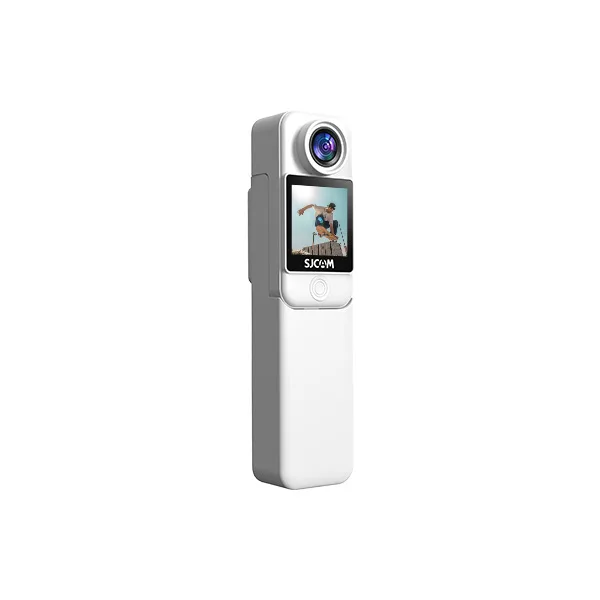
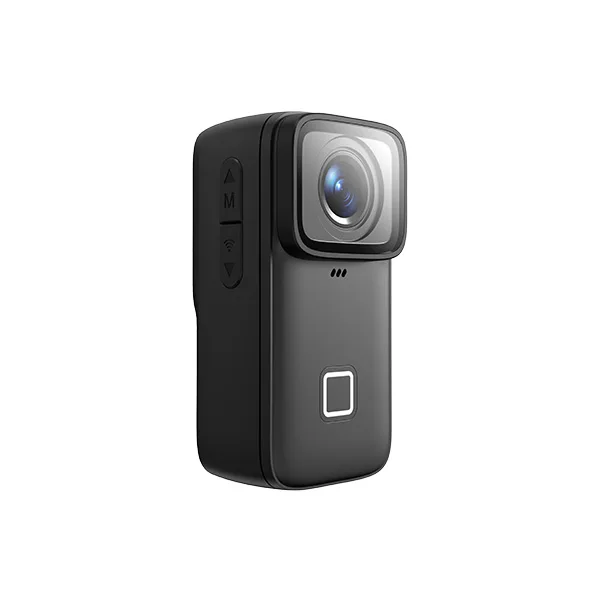
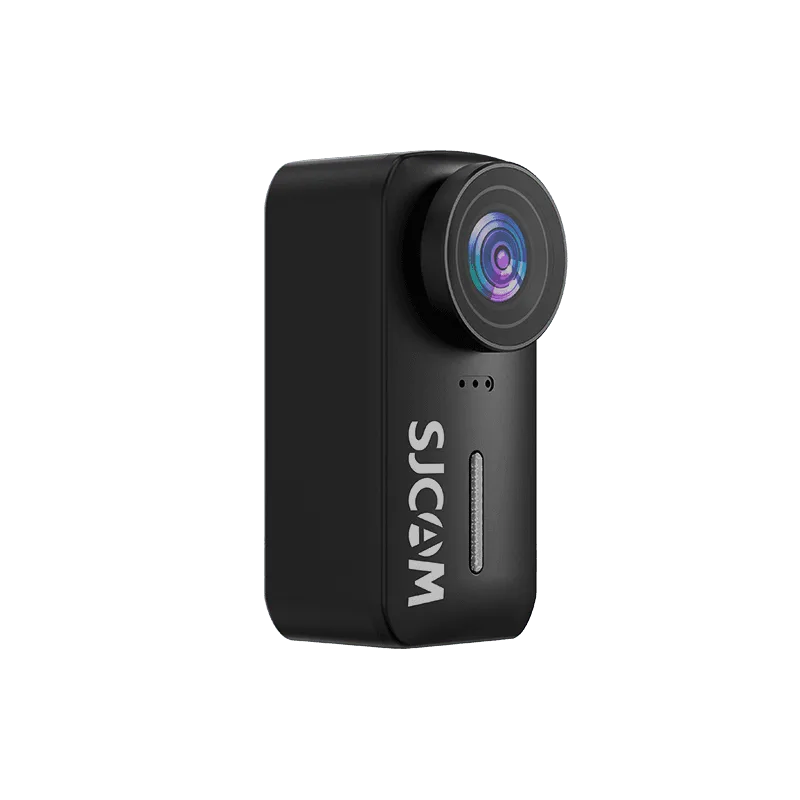
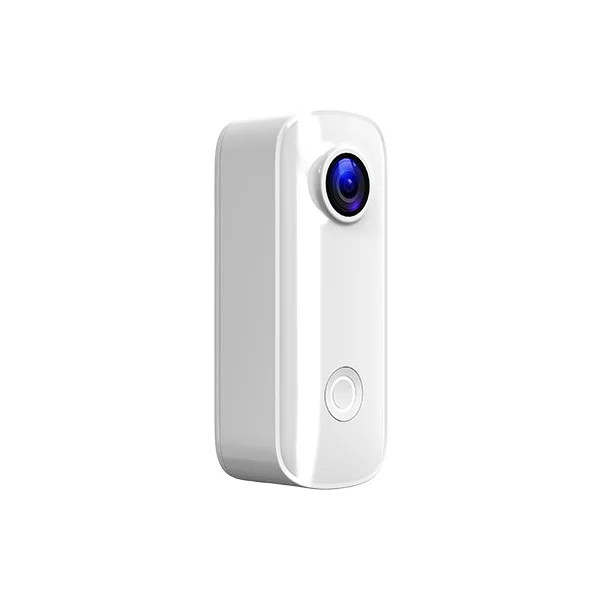
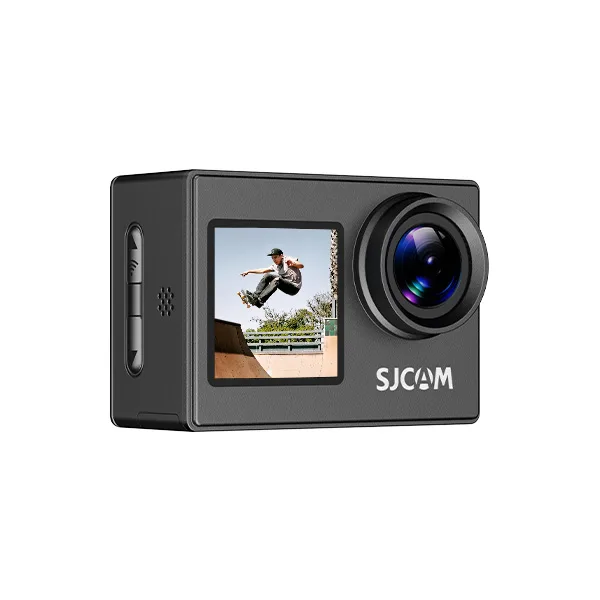
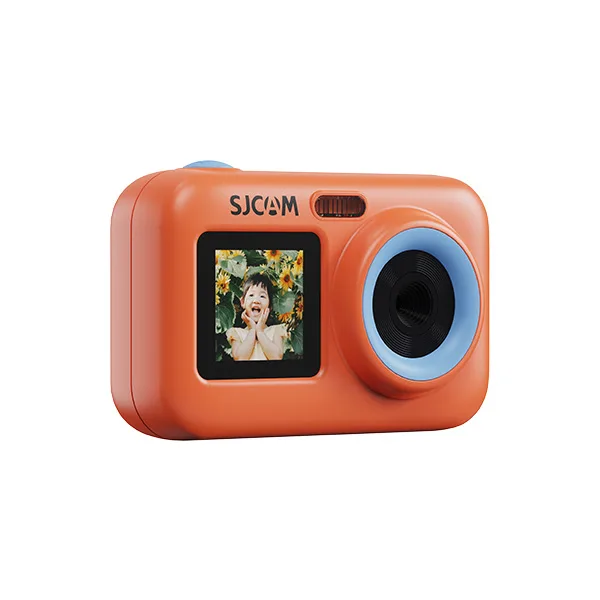
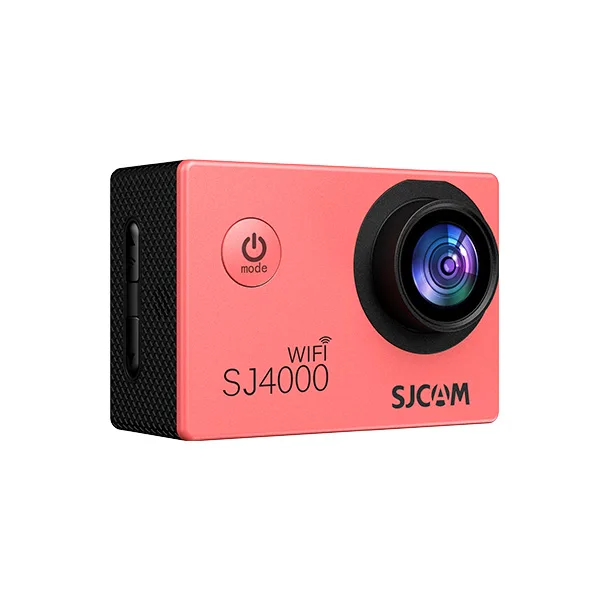
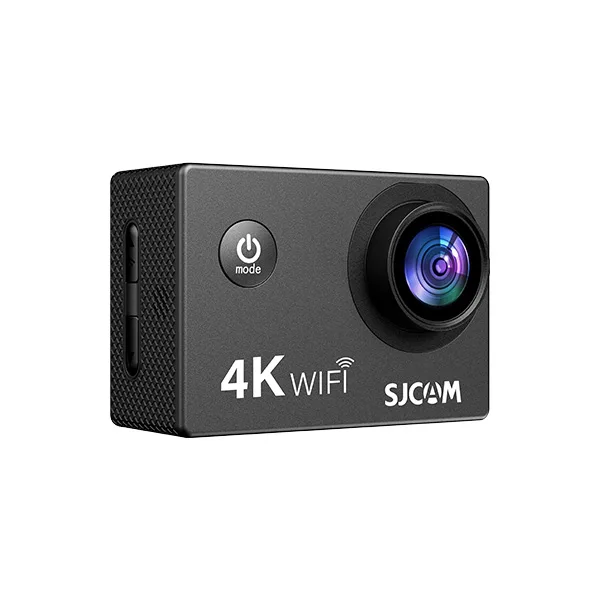










App-Oberfläche und Bedienungsanleitung
Once connected to the camera, enter the shooting interface in the SJCAM X App to preview the live feed, control recording, adjust parameters, and manage your media files.
How do I preview the live feed?
Upon entering the shooting interface in the App, you can view the camera’s current live feed, which helps with positioning the camera and framing your shots. You can also check the camera’s current battery level via the icon in the top-right corner of the screen.
How do I take photos or record videos?
Select your desired photo or video mode, then tap the shutter button to take a photo or start recording. To stop recording, simply tap the button again.
How do I switch shooting modes?
Swipe left or right on the screen within the shooting interface, or tap the "Shooting Mode" icon in the bottom-right corner to select your preferred mode. Alternatively, you can tap the "Settings" icon in the bottom-right corner to select and switch between shooting modes.
How do I adjust shooting parameters?
Tap the "Resolution" icon in the top-right corner to change the resolution for the current mode.
For further adjustments, tap the "Settings" icon in the bottom-right corner. Here, you can configure shooting parameters—such as watermarks and white balance—as well as system settings, including the camera language and screen sleep timer.
How Do I Play Back and Download Media?
- On the App shooting page, tap Playback in the lower-left corner to view photos and videos stored on the camera.
- Tap any file to open the preview screen.
- Tap the download button in the bottom-right corner to save the file to your phone.
To download multiple files at once, return to the playback screen, tap the function menu icon in the top-right corner, select the desired files, and then tap the download button at the bottom.
Note: Viewing a file does not mean it has been downloaded to your phone; please ensure the download is complete before disconnecting.
How do I delete files?
How Do I Delete Media?
On a media preview page, tap the Delete icon in the lower-left corner and follow the prompts to delete the file.
To delete multiple files, return to the playback page, tap the function button in the upper-right corner, select the desired files and tap Delete at the bottom. Back up important media before deleting it.
How Do I Disconnect the App?
Method 1: Disconnect on the Camera
Swipe down from the top of the camera screen to open the Quick Menu, then turn Wi-Fi off to disconnect.
Method 2: Disconnect in the App
On the SJCAM X App shooting page, tap Settings in the lower-right corner, scroll to the bottom, and tap Disconnect.