






 Chinese (China)
  Spanish
  German
  French
  Italian
  Japanese
  Korean
  Bulgarian
  Greek
Greek  Indonesian
  Chinese (Hong Kong)
  Russian
  Danish
  Finnish
  Hungarian
  Turkish
  Dutch
Dutch  Portuguese
  Swedish
  Romanian
  Slovak
  Serbian
  Norwegian
  Croatian
  Albanian
  Catalan
  Czech
Czech  Estonian
  Armenian
  Bengali
  Amharic
  Polish
  Thai
Thai  Ukrainian
  Vietnamese













microSD Card Quick Start Guide for SJCAM action cameras
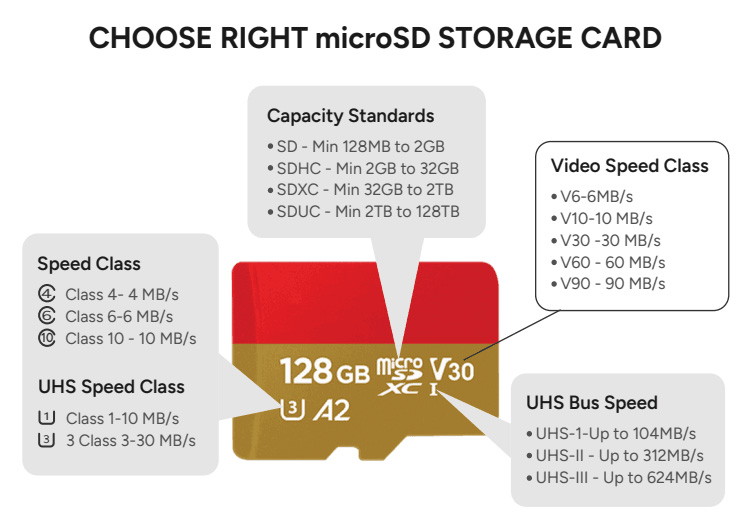
1. Recommended SD Card Types
To handle high-bitrate video recording (like 4K), your SD card must meet the following specifications. Using lower-rated cards may cause the camera to stop recording unexpectedly or result in corrupted files.
Speed Class: Must be V30 (Video Speed Class 30) or higher.
Bus Interface: UHS-I or UHS-II (U3).
Recommended Brands: * SanDisk: Extreme, Extreme Plus, Extreme Pro.
Samsung: EVO Plus, PRO Plus, PRO Ultimate.
Lexar: Professional 1066x Silver Series.
Kingston: Canvas Go! Plus.
Amazon Basics: Micro SDXC Memory Card
[!IMPORTANT] Always use a reputable brand. Counterfeit or low-speed cards are the #1 cause of recording failures.
2. Insertion & Power On
Follow these steps to avoid hardware or file system errors:
2.1 .Power Off: Ensure the camera is completely powered off before inserting the card.
2.2. Insert card: Push the card into slot until you hear a “click” and it stays in place.
2.3. Power On: Press the Power button to turn on the camera.
3. Essential Formatting (Initialization)
A new SD card must be formatted before the first use. Even if the card is pre-formatted, initializing it within the camera ensures the file system is optimized for action recording.
Option A: Format via Camera (Recommended)
- Go to the camera’s Settings menu.
- Find the Format option.
Note: Confirm the action. The camera will clear all data and build the necessary folder structure.
Option B: Format via Computer
If you prefer using a PC/Mac, please use the following settings:
File System: Select exFAT (for cards 64GB and larger).
Allocation Unit Size: Default.
Warning: Formatting will erase all existing data on the card. Back up your files first!
[!WARNING] Failure to format the card may result in “SD Card Error” or prevent the camera from saving your videos.