



 Chinese (China)
  Spanish
  German
  French
  Italian
  Japanese
  Korean
  Bulgarian
  Greek
Greek  Indonesian
  Chinese (Hong Kong)
  Russian
  Danish
  Finnish
  Hungarian
  Turkish
  Dutch
Dutch  Portuguese
  Swedish
  Romanian
  Slovak
  Serbian
  Norwegian
  Croatian
  Albanian
  Catalan
  Czech
Czech  Estonian
  Armenian
  Bengali
  Amharic
  Polish
  Thai
Thai  Ukrainian
  Vietnamese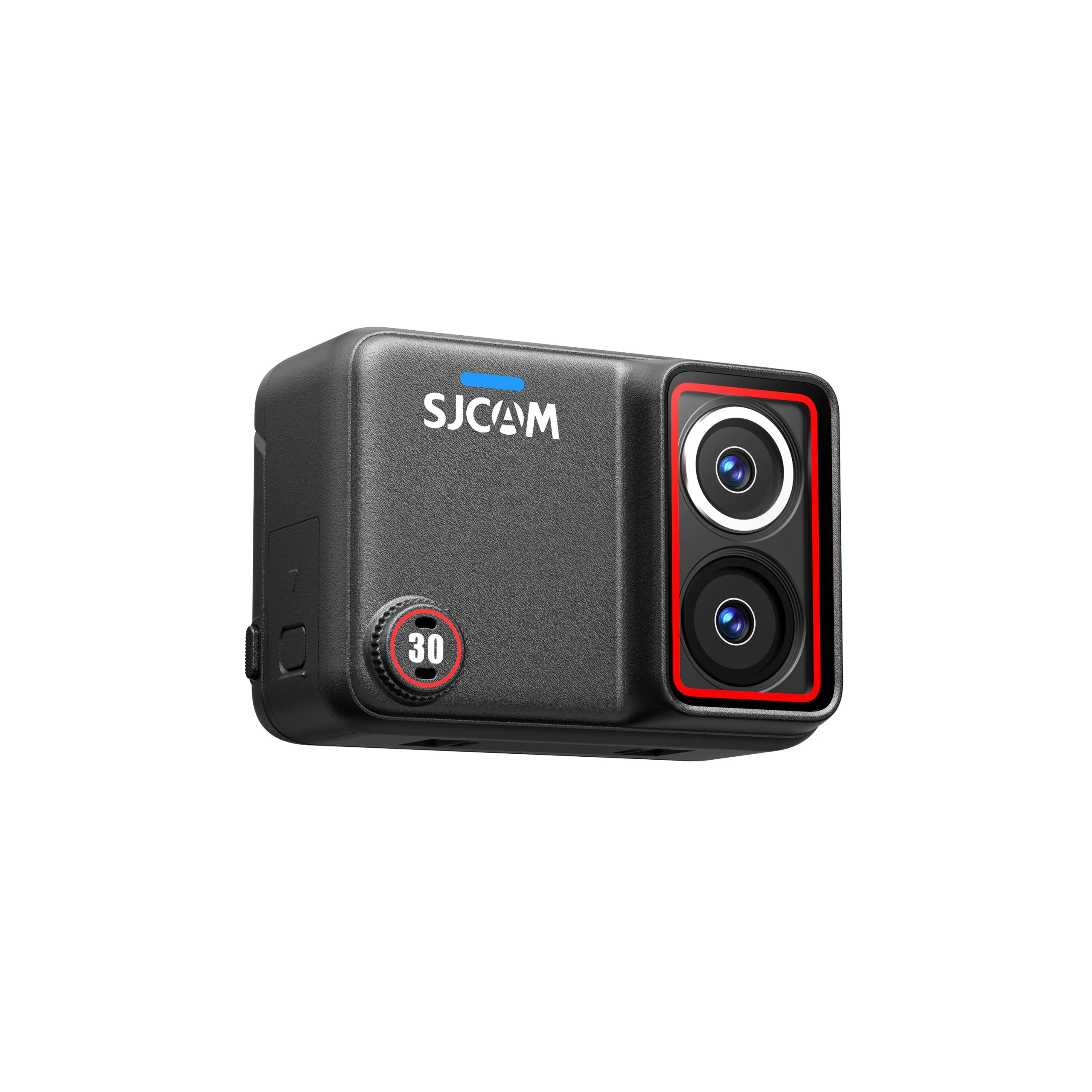
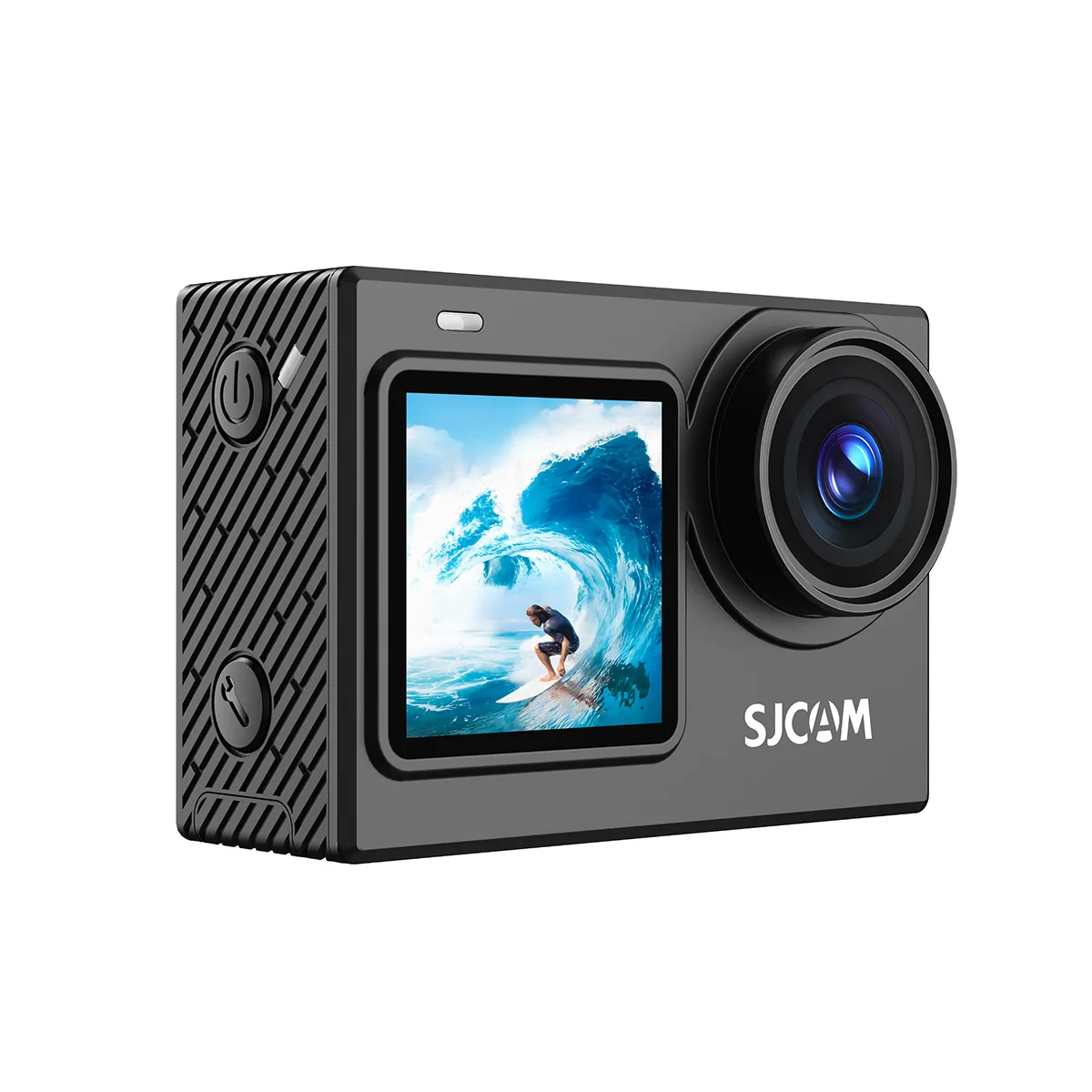
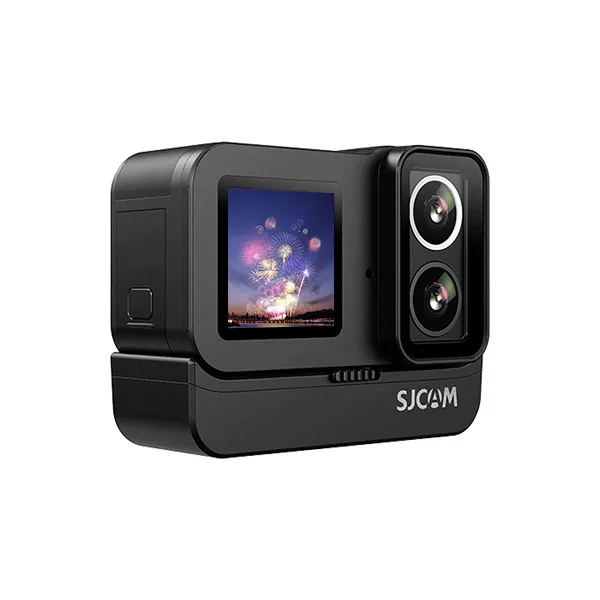
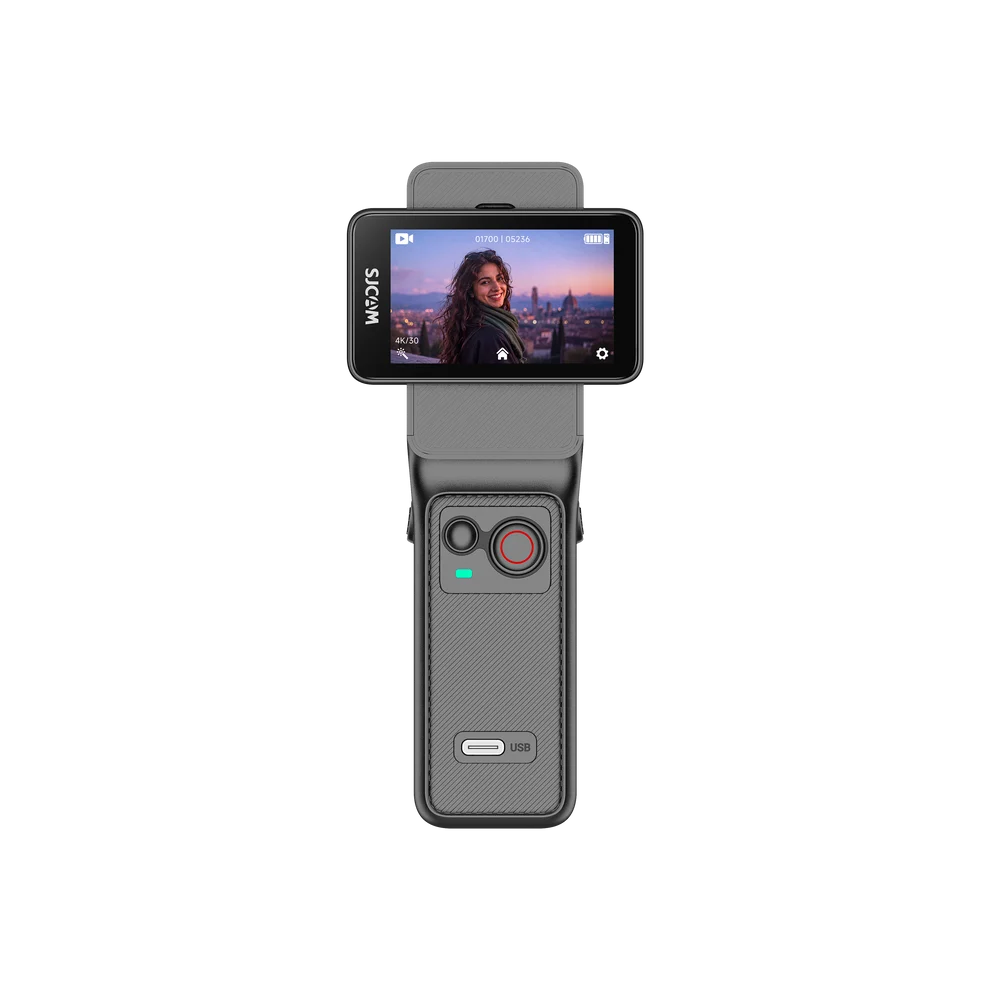
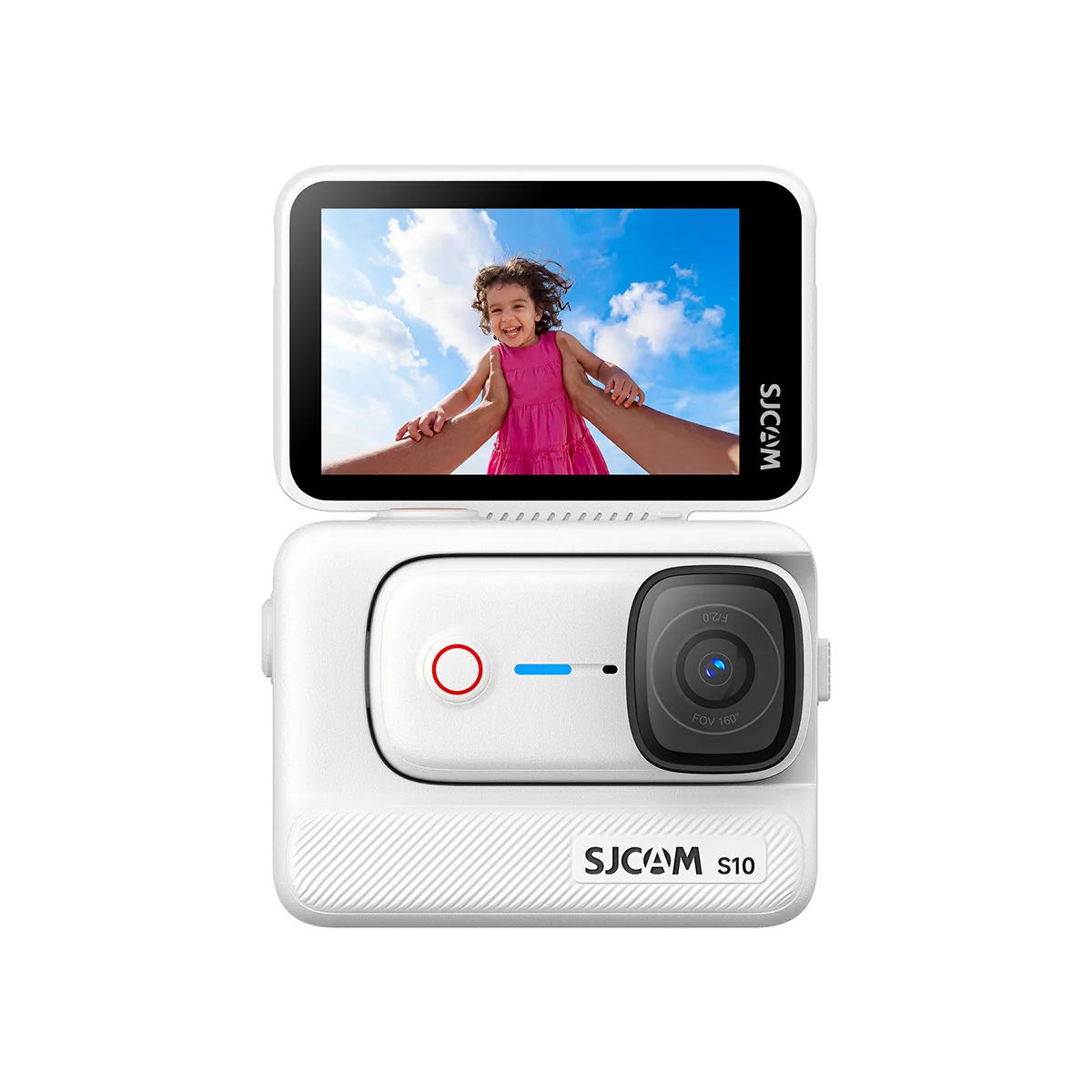
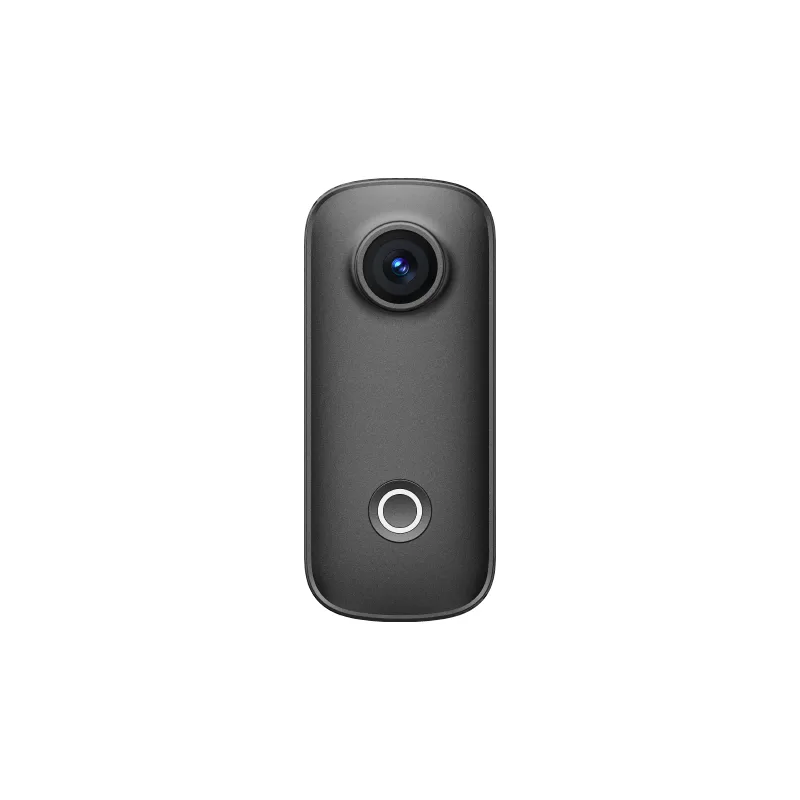
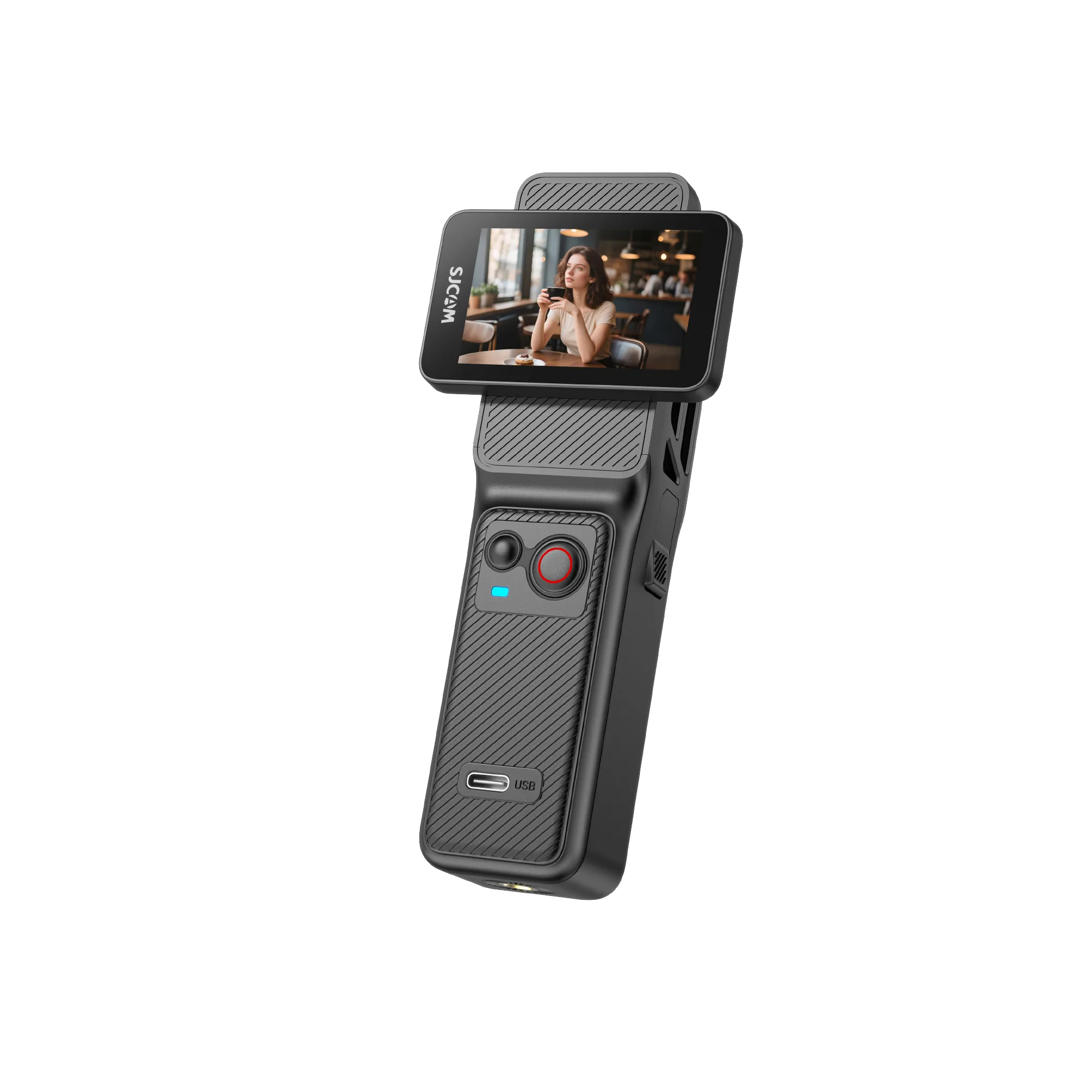
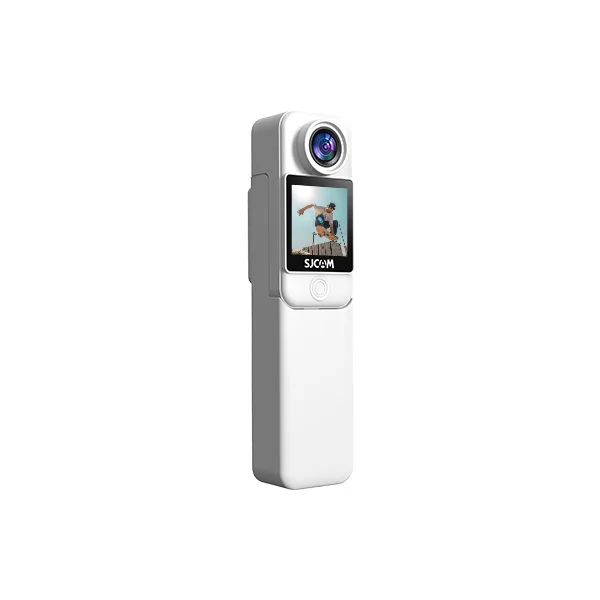
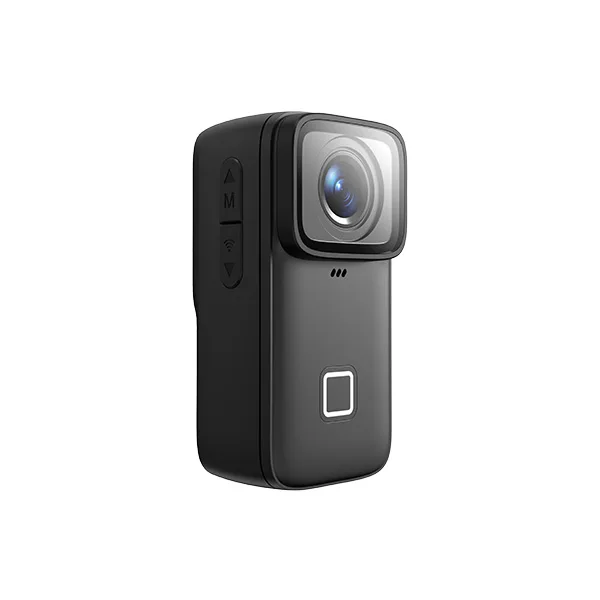
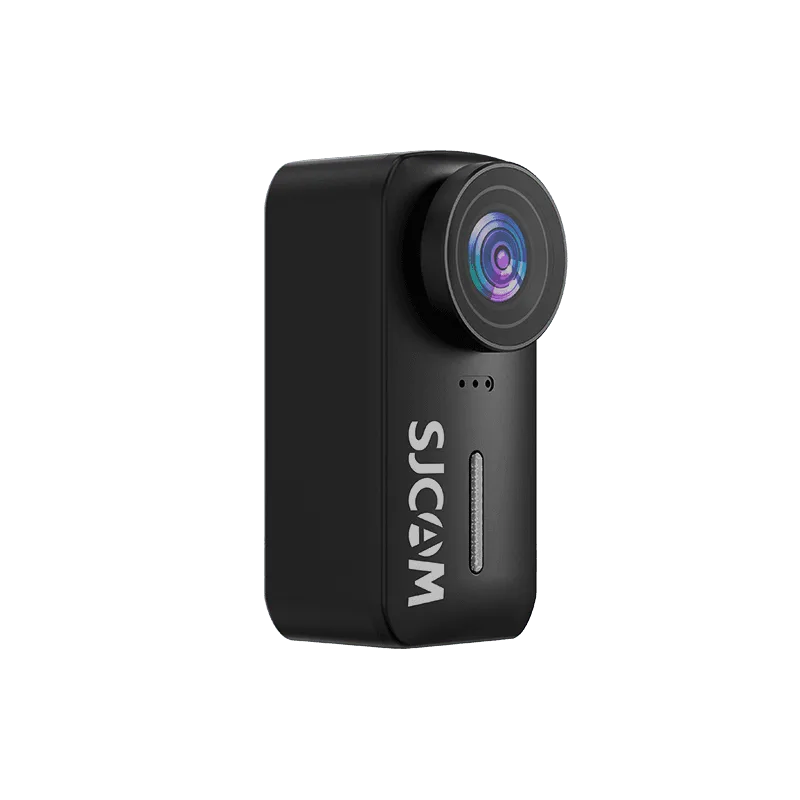
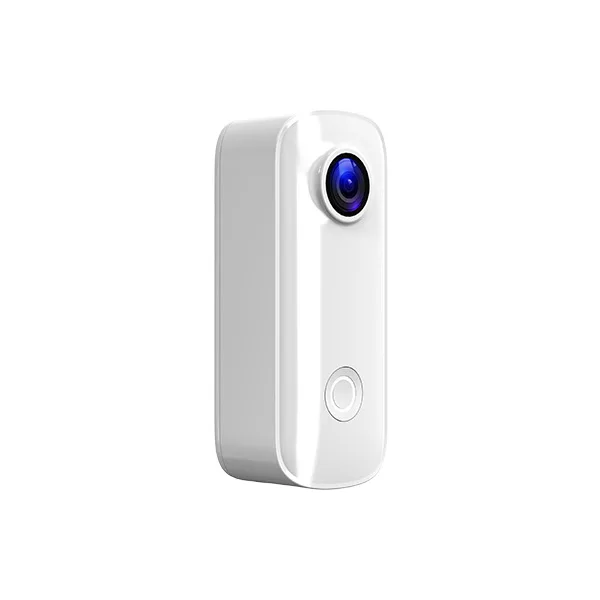
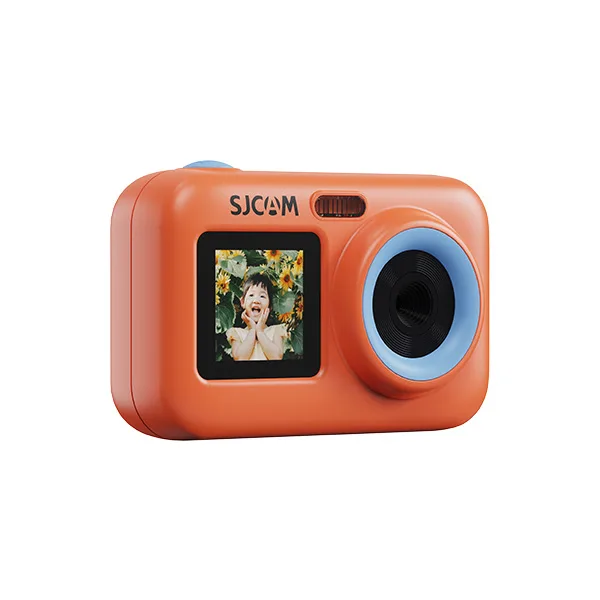
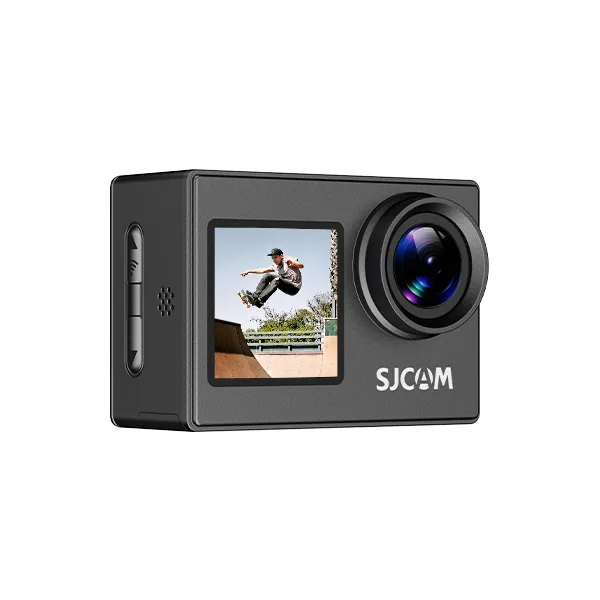
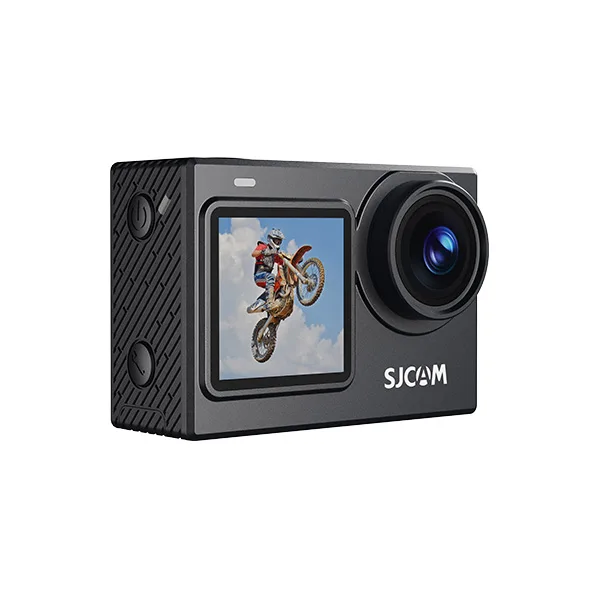
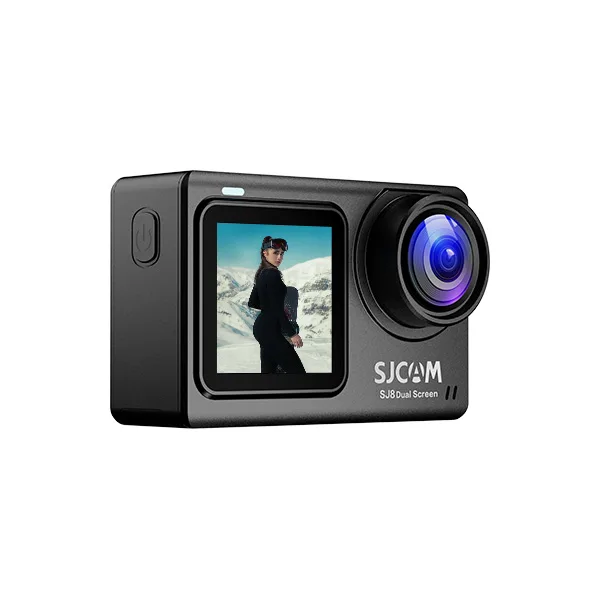
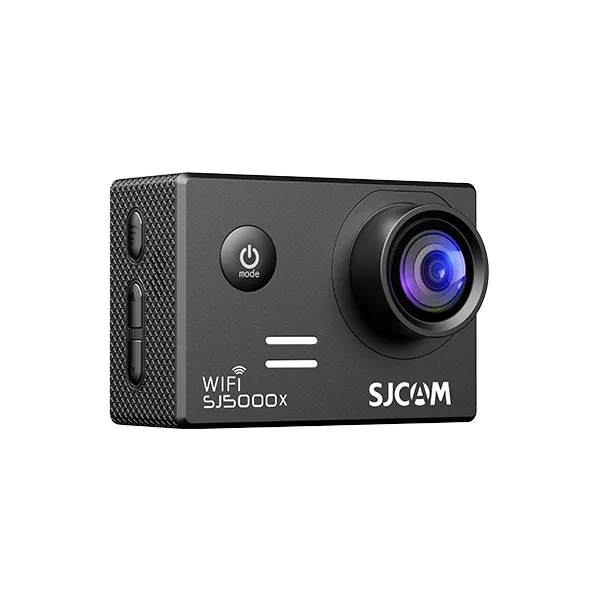



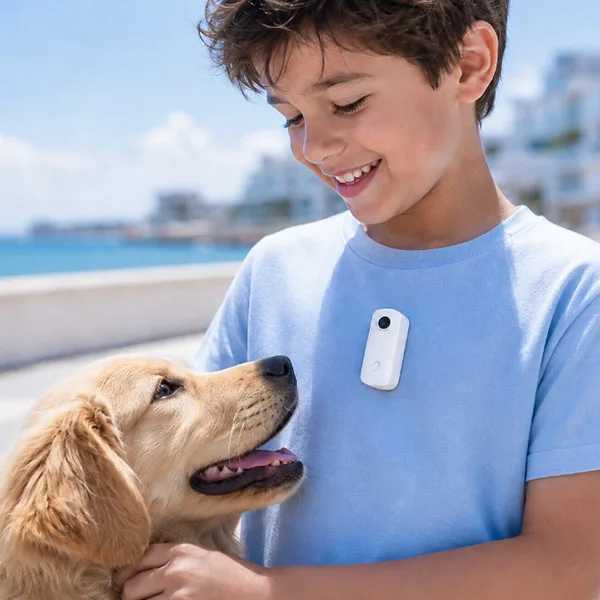

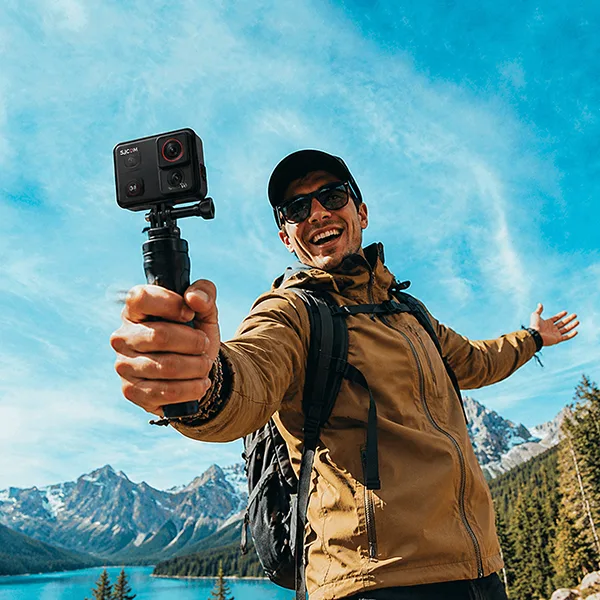



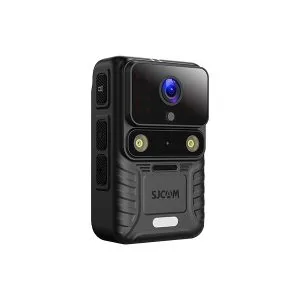
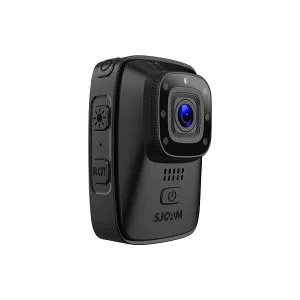
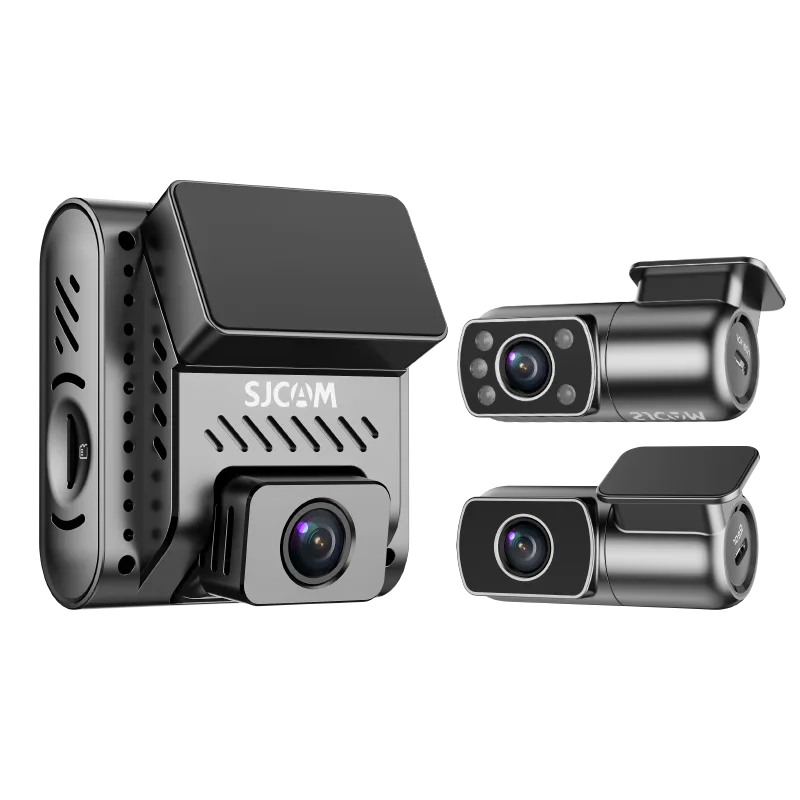
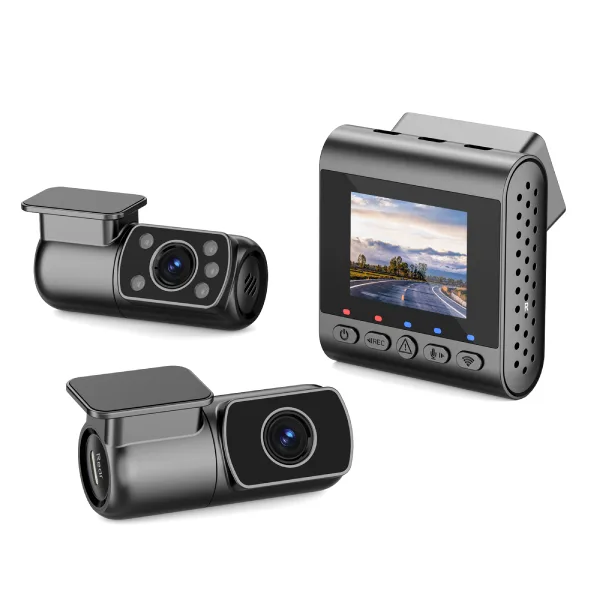
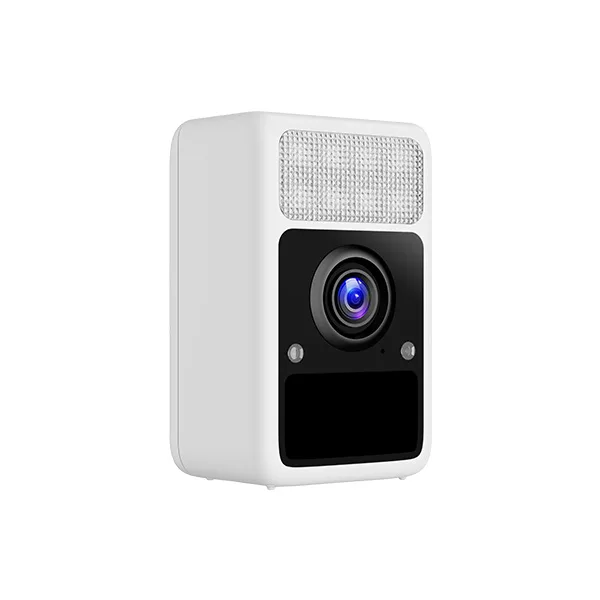
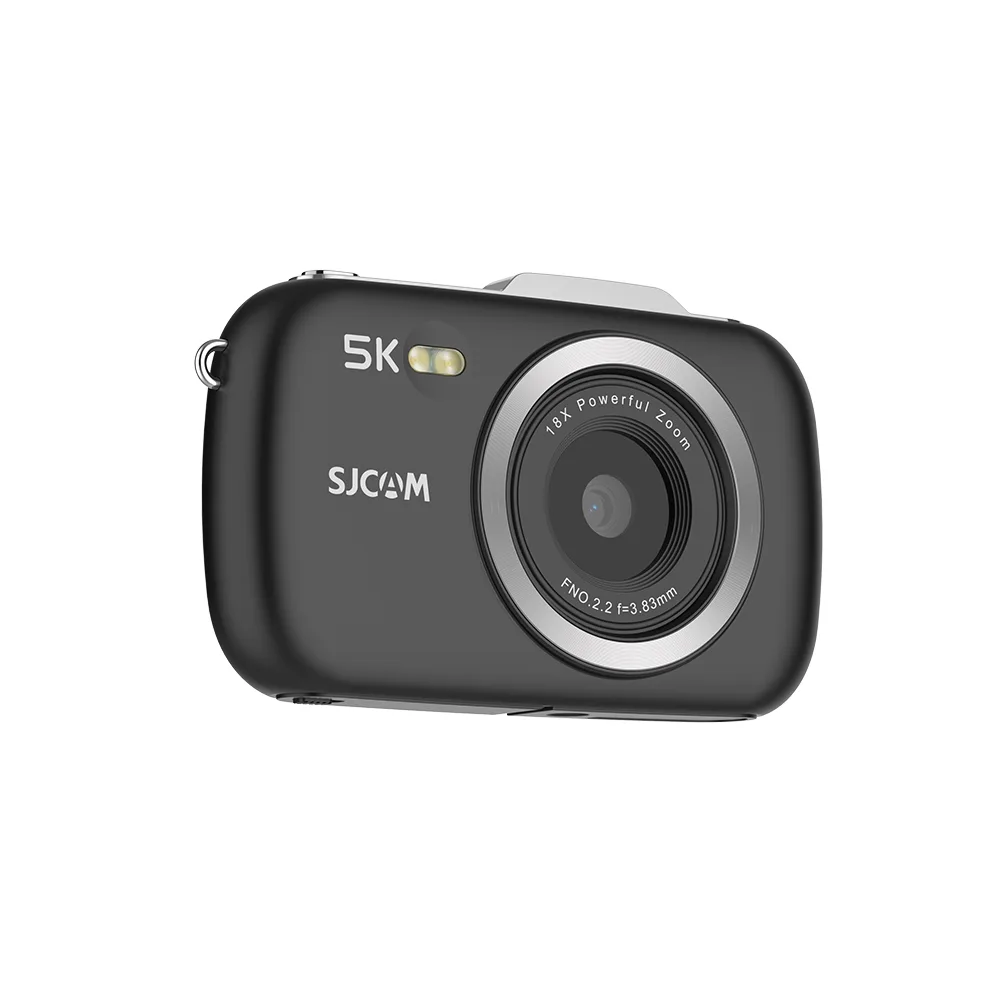
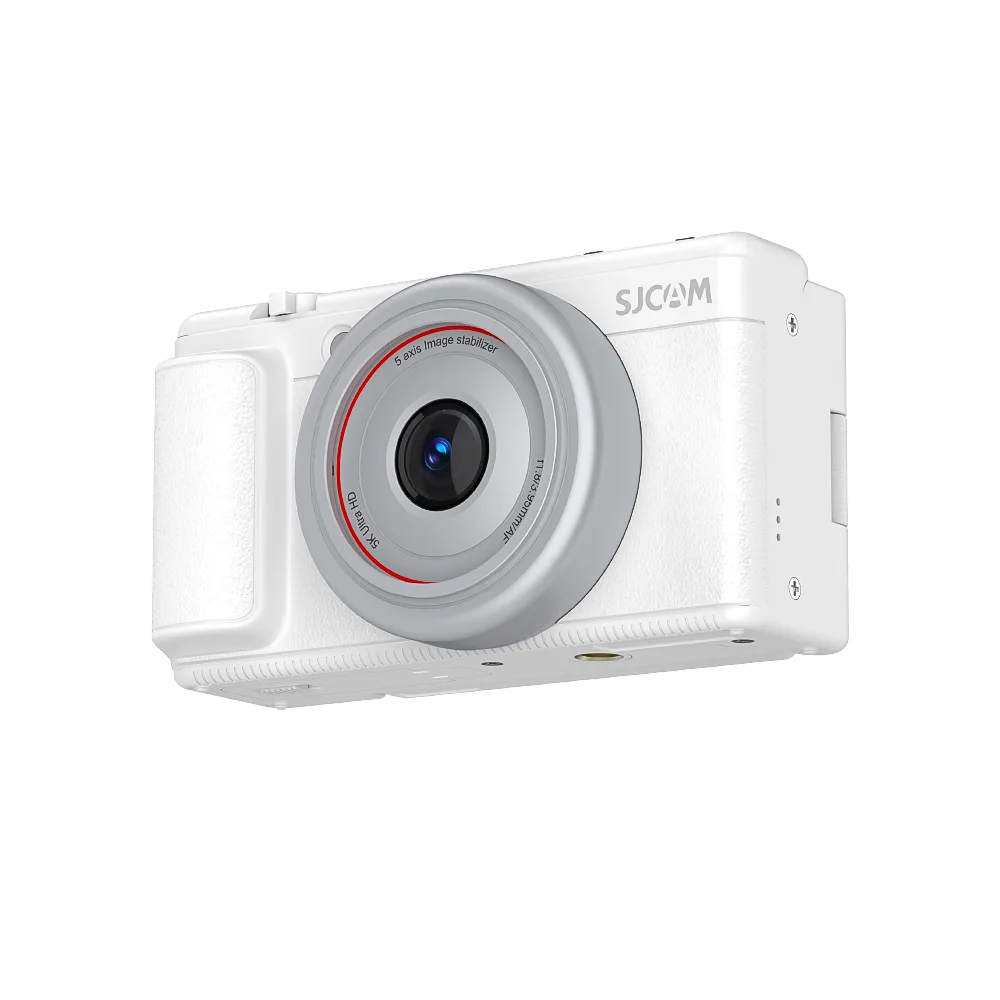



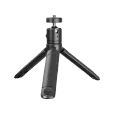
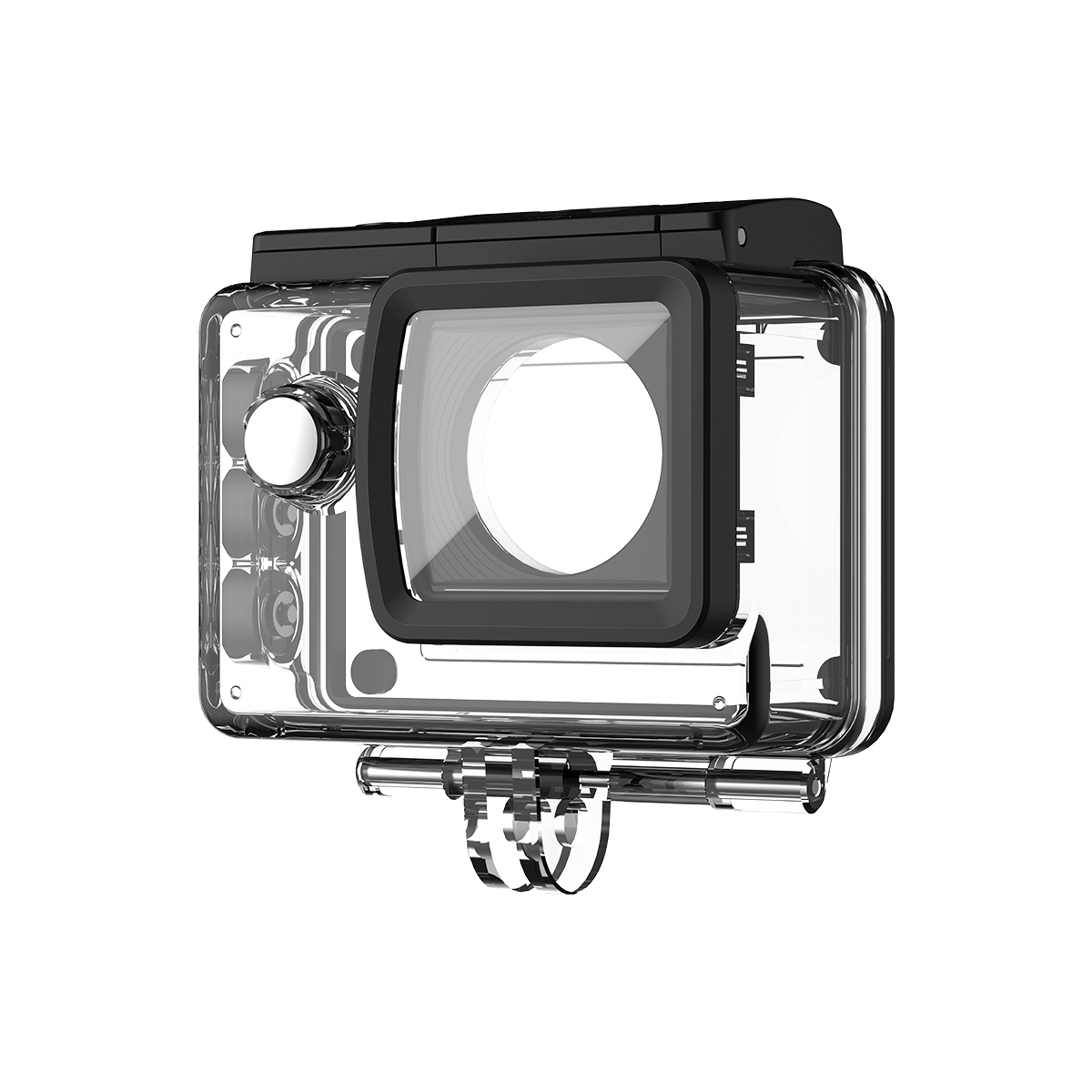
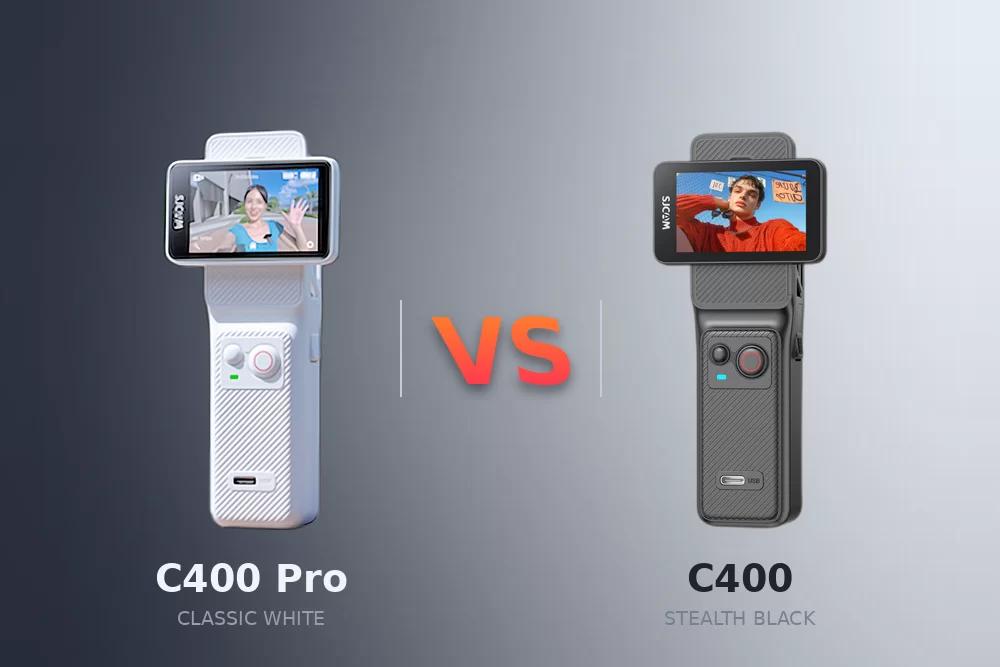
When shooting selfies and vlogs for documenting daily life, rapid creation requires equipment that responds quickly. The SJCAM C400 is renowned for its outstanding 4K image quality and seamless integration with its smart ecosystem. Below, based on the latest official technical documentation, we will provide a detailed guide on how to quickly connect the SJCAM C400 to the SJCAM Zone app, turning your mobile phone into a professional monitor and controller instantly.
1. Preparation: Downloading the “Digital Brain”
Before attempting to connect, ensure you are using the official ecosystem to guarantee security and firmware compatibility.
- Download: Search for “SJCAM Zone” in the iOS App Store or Google Play Store.
- Permission Check (Pro Tip): For a seamless handshake between devices, ensure your smartphone’s Wi-Fi, Bluetooth, and GPS/Location services are enabled. These permissions are required by modern operating systems to establish a secure point-to-point connection with hardware.
2. Step-by-Step: The 3-Second QR Pairing Method
The SJCAM C400 eliminates the frustration of manual Wi-Fi password entry by using an intuitive QR code auto-pairing system.
- Step 1: Power On
Handheld Mode: If using the dedicated controller, simply rotate the screen to power on the unit instantly.
Standalone Mode: Press and hold the power button located directly below the screen.
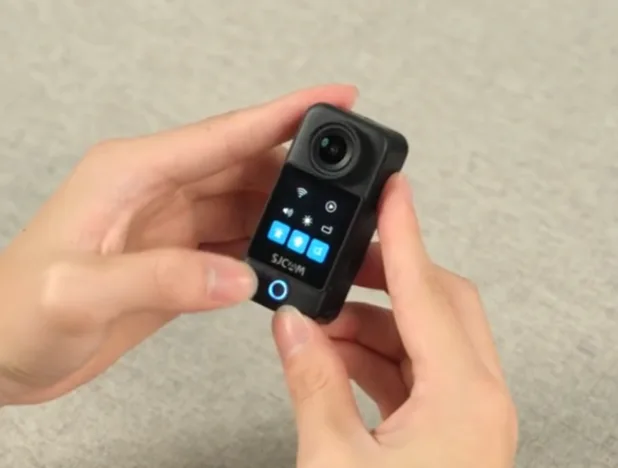
- Step 2: Access the Control Center
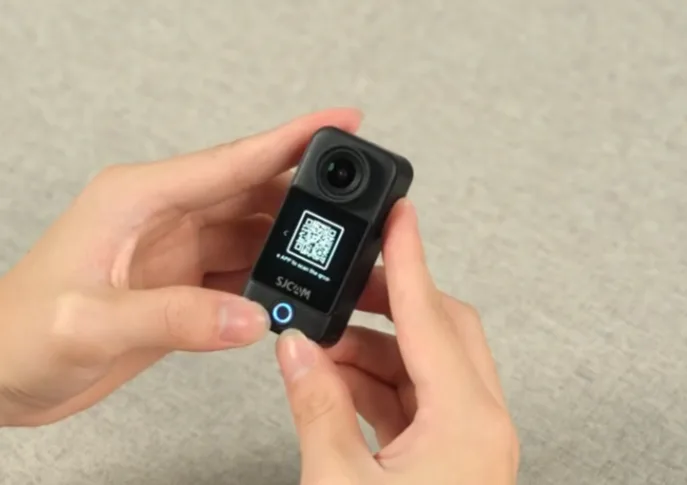
Swipe down from the top of the camera’s touchscreen to open the quick settings menu. Tap the Wi-Fi icon. A unique QR code will immediately appear on the camera’s display.
- Step 3: Scan and Sync
Open the SJCAM Zone App on your phone and tap “Scan to Connect.” Align your phone’s camera with the QR code on the C400.
Expert Insight: If you are outdoors in bright sunlight, tilt the camera screen slightly to avoid glare, ensuring a faster scan. The connection will complete automatically without further input.
3. Advanced Features: Why the App is Essential for Creators
Once connected, the SJCAM Zone app transforms your smartphone into a professional production monitor:
- Professional Parameter Tuning: Adjust deep settings such as ISO, white balance (WB), and exposure value (EV) in real-time without touching the camera—perfect for when the C400 is mounted in a hard-to-reach spot.
- High-Definition Live Preview: The smartphone screen offers a much larger canvas for framing your 4K shots, which is crucial for ensuring focus and composition during solo vlogs.
- In-App Gallery Management: Access the “Gallery” icon in the lower-left corner to browse, download, or delete footage.
- Creator Tip: To save phone storage, use the app to preview clips and only download the specific “golden takes” for quick editing in apps like TikTok or Instagram Reels.
- One-Touch Power Off: Finished for the day? Tap the power icon in the upper-right corner of the app to disconnect and put the camera into standby, preserving your battery life for the next shoot.
Final Verdict
By integrating the SJCAM Zone App into your daily routine, the C400 becomes more than just an action camera—it becomes a fully integrated extension of your creative workflow. For a visual walkthrough of these steps, watch the official SJCAM tutorial below.
Troubleshooting FAQ
Ensure your phone isn’t currently locked onto a “known” Wi-Fi network with high priority (like your home router or Apple CarPlay). Temporarily “forgetting” or disconnecting from these can help the phone prioritize the C400’s direct signal.
Not at all. The app receives a “proxy” stream for monitoring, while the full-bitrate 4K 30FPS master file is recorded safely onto your high-speed MicroSD card.